Lesson 6 Guide — Form Validation States
Goal: by the end of this lesson your forms show an error state on submit — an
invalid control turns red and a message appears beneath it — driven by one tiny shared
script, js/validation.js. You'll wire it into the Sign In page, the Staff
form, and the Cancel modal. This is the exact markup and behavior React's
react-hook-form produces in the React pass — you're building the target by hand
first, so converting it later is a straight swap.
The general pattern you're learning: every form field has two states — valid
(clean) and invalid (a message under a red-outlined control). Bootstrap ships both
halves of the invalid state as CSS: add the class is-invalid to a control and its
sibling .invalid-feedback message appears. The only real decision is when to
add that class — by hand (to understand it), or automatically on submit (so a real
form, and a peer reviewer checking your work, can trigger it).
How to use this guide. Sections marked ▶ Code along are hands-on — build them into your project as you read. This is a build-heavy lesson: section 1 is concept, and everything after it edits real pages. Read section 1 first, then code along the rest and in the lab.
A note on JavaScript. This pass has been markup-only so far — the only script was Bootstrap's bundle. Lesson 6 uses one small script,
js/validation.js— provided in your design starter — because a form that never reacts to a bad submit can't be peer-reviewed against the error-state screenshots. It's the one sanctioned bit of custom JS in this pass, and it's a direct preview of whatreact-hook-formwill do for you in React.
1. The two states of a field
Open staff-create.html. Every field is the same three-line wrapper — a label, a
control, and (once you add it) a message slot:
<div class="mb-3 w-50">
  <label for="firstName" class="form-label">First Name</label>
  <input id="firstName" type="text" class="form-control" placeholder="Enter first name" />
</div>
Bootstrap's error state is two additions:
- The class
is-invalidon the control (form-control/form-select/ textarea) — turns it red. On the control, never the label. - A sibling
<div class="invalid-feedback">right after the control, holding the message.
The reason it works with zero JavaScript is one CSS rule Bootstrap already defines:
So .invalid-feedback is hidden by default and reveals the moment its sibling
control has is-invalid. Two consequences you'll rely on all lesson:
- The message is just markup — it appears on page load if
is-invalidis present, no submit or script required. - A hidden feedback div takes zero height, so adding one to a clean form changes nothing visually. That's why you can add message slots to every field now and the page still looks finished.
2. ▶ Code along — Sign In: add the markup, toggle it by hand
Start with the simplest form, signin.html. Give each field a required attribute and
a hidden .invalid-feedback message:
<div class="mb-3">
  <label for="username" class="form-label">Username</label>
  <input id="username" type="text" class="form-control" required />
  <div class="invalid-feedback">Username is required</div>
</div>
<div class="mb-1">
  <label for="password" class="form-label">Password</label>
  <input id="password" type="password" class="form-control" required />
  <div class="invalid-feedback">Password is required</div>
</div>
Save and look — nothing changed, because the messages are hidden. Now prove the mechanism to yourself:
Save and check
- Add
is-invalidto the username input by hand —class="form-control is-invalid"— save, and the field turns red with "Username is required" beneath it. - Delete
is-invalid, save, and it's gone.
That single class is the entire error state — everything from here just adds and removes it for you.
That hand-toggle is how you understand it. It's not how a real form should work —
you can't ask a user (or a peer reviewer) to edit HTML to see the error. Delete any
is-invalid you added by hand before moving on; the next section makes submit do it.
3. Making submit reveal the errors
You want: click the button with an empty field → the field goes red; fill it in →
the form proceeds. In React that's react-hook-form's job. In the static pass a
~20-line script does the same thing — it listens for a form's submit, adds
is-invalid to any control that fails its rule, and lets valid forms through.
The rules it checks are the same three the React app uses:
| Rule | How you declare it | What fires the error |
|---|---|---|
| required | required on the control |
the value is empty |
| min (numbers) | min="1" on the control |
the number is below the minimum |
| maxlength | native maxlength="50" |
(nothing to check — the browser blocks it; see section 7) |
required and min are checked and messaged on submit. maxlength is different — the
browser enforces it as you type, so the script never has to.
4. ▶ Code along — the validation script, wired to Sign In
Your design starter already includes js/validation.js — open it and read what it does (if your copy predates it, create it with this script):
// Reveal validation errors on submit — the static-pass stand-in for react-hook-form.
// Any <form novalidate> is validated; a valid form navigates to its data-success URL.
document.querySelectorAll("form[novalidate]").forEach((form) => {
  form.addEventListener("submit", (event) => {
    event.preventDefault();
    let firstInvalid = null;

    form.querySelectorAll("input, select, textarea").forEach((control) => {
      const value = control.value.trim();
      const min = control.getAttribute("min");
      const invalid =
        (control.required && !value) ||
        (min && value !== "" && Number(value) < Number(min));

      control.classList.toggle("is-invalid", invalid);
      if (invalid) firstInvalid ??= control;
    });

    if (firstInvalid) firstInvalid.focus();
    else if (form.dataset.success) window.location.href = form.dataset.success;
  });
});
Read what it does: on submit it stops the browser's own submit, walks every control,
and marks each one is-invalid if it fails its rule — empty when required, or below
min. It only toggles the class — the message text lives in the .invalid-feedback
div in your markup, exactly like the required messages you already wrote. If nothing
failed, it navigates to the form's data-success — the static stand-in for "save
succeeded, go to the next page."
Now wire Sign In to it. Two edits to signin.html — the
<script src="/js/validation.js"> tag is already linked on every page in your starter,
right after the Bootstrap bundle:
- Mark the form so the script picks it up, and tell it where a valid submit goes:
- The current Sign in control is an
<a>— it can't submit a form. Make it a real submit button:
Save and check
- Click Sign in with both fields empty — both turn red with their messages.
- Type a username and password, click again — it navigates to
/orders.html.
That's the whole loop, and it's exactly what react-hook-form will do in React Lesson 7.
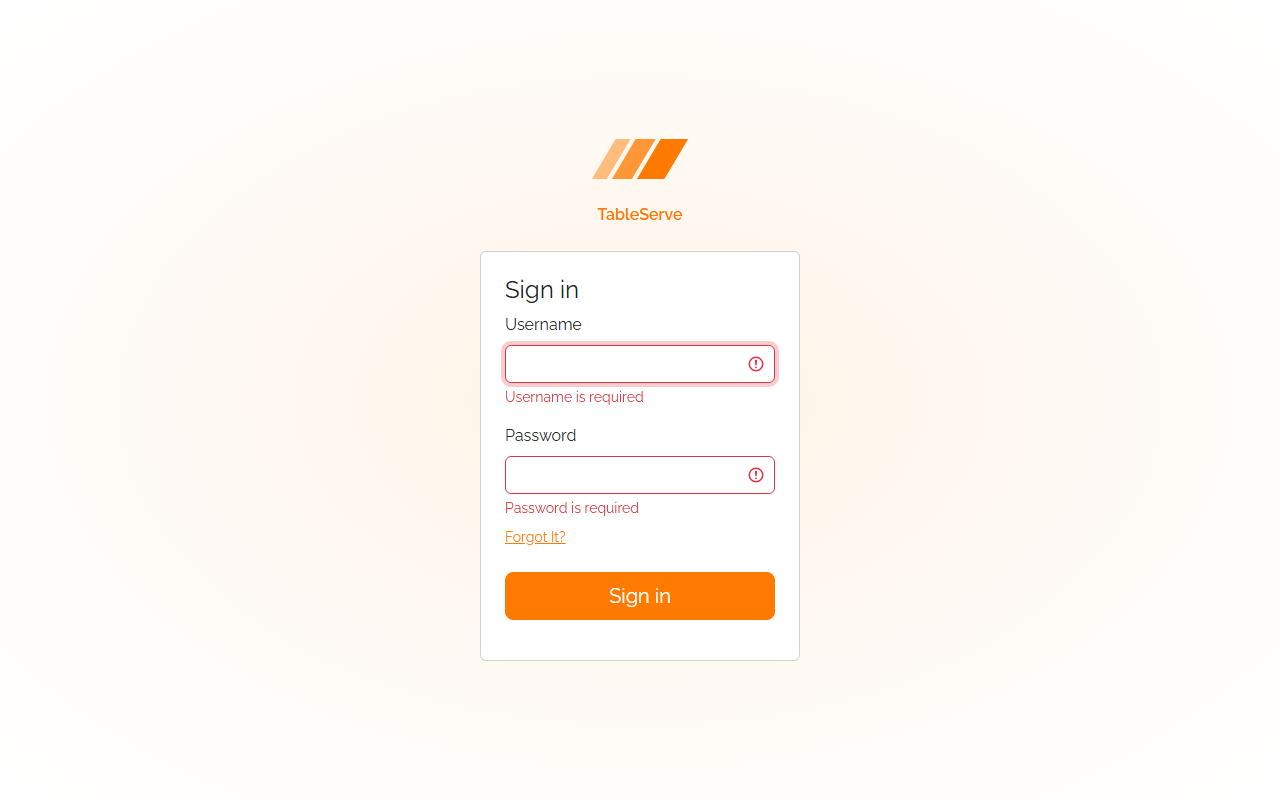
novalidateturns off the browser's built-in validation bubbles so your Bootstrap messages are the only ones shown. The script still reads therequiredattribute — it just does the reacting itself, the same wayreact-hook-formdoes.
5. ▶ Code along — the Staff form (required + a length limit)
staff-create.html is the real target: several required fields, plus two with a
maximum length. Add required and a message slot to the four required fields
(First Name, Last Name, Username, Password), and a native maxlength to Username
and Password:
<div class="mb-3 w-50">
  <label for="firstName" class="form-label">First Name</label>
  <input id="firstName" type="text" class="form-control" placeholder="Enter first name" required />
  <div class="invalid-feedback">First name is required</div>
</div>

<!-- ...Last Name the same... -->

<div class="mb-3 w-50">
  <label for="username" class="form-label">Username</label>
  <input id="username" type="text" class="form-control" placeholder="Enter username" required maxlength="50" />
  <div class="invalid-feedback">Username is required</div>
</div>
<div class="mb-3 w-50">
  <label for="password" class="form-label">Password</label>
  <input id="password" type="password" class="form-control" placeholder="Enter password" required maxlength="60" />
  <div class="invalid-feedback">Password is required</div>
</div>
Leave Email and Phone alone — they're optional, so no required, no message.
The Role checkboxes aren't validated either.
Then wire the form the same way as Sign In — but the Save staff button is already
type="submit", so you only add the form attributes (the <script> is already linked):
Save and check
- Click Save staff with the form empty — First Name, Last Name, Username, and Password go red; Email and Phone stay clean (they're optional).
- Fill the four required fields and save — it navigates to
/staff.html. - Try typing past 50 characters in Username — the field simply stops accepting input.
That's
maxlength, not the script; section 7 explains why it behaves differently.
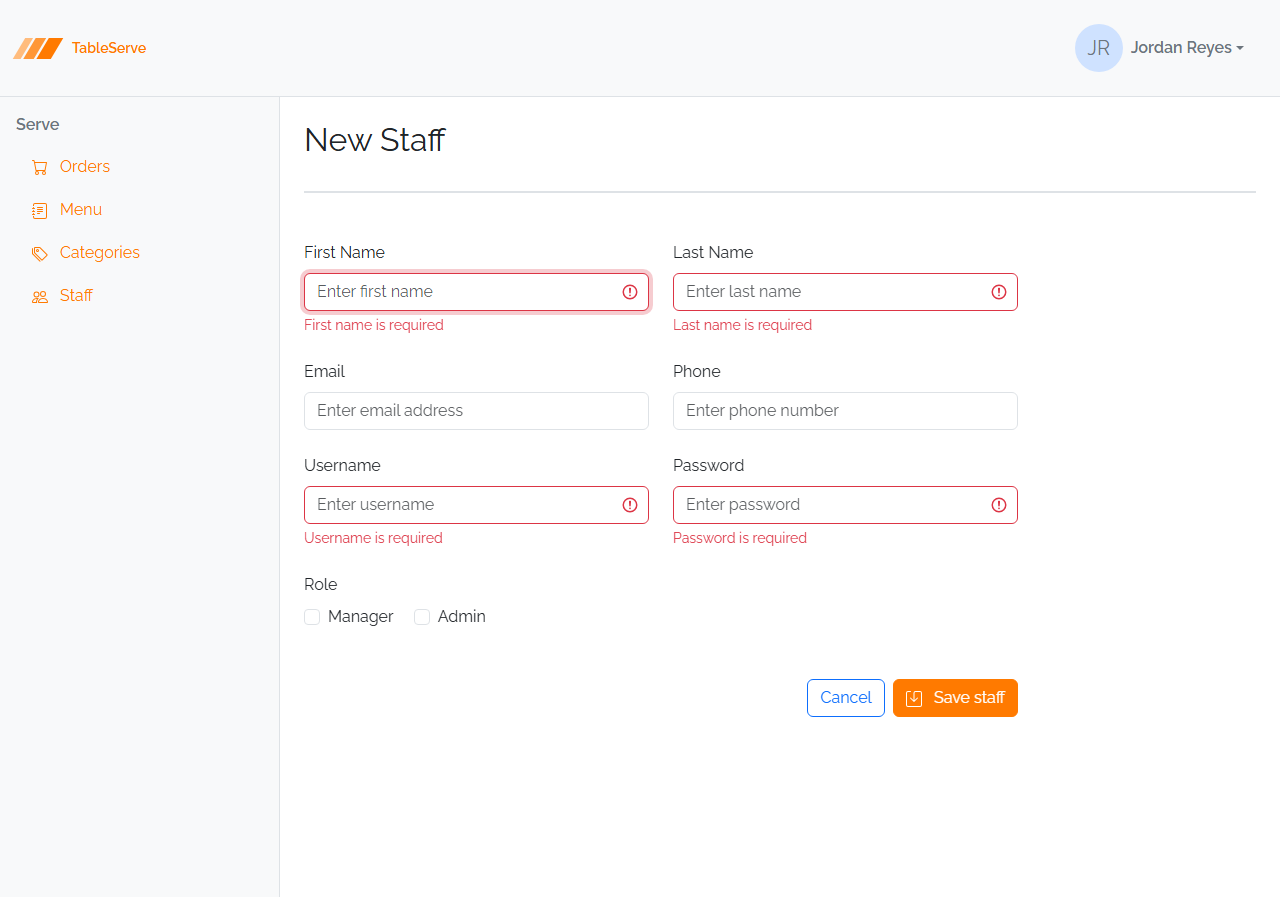
6. ▶ Code along — the Cancel modal
The Cancel Order modal in order-detail.html already has the markup from Lesson 5 —
a required textarea and an .invalid-feedback div:
<textarea class="form-control" id="cancellationReason" rows="6" required></textarea>
<div class="invalid-feedback">Cancellation reason is required</div>
It just wasn't wired. The validation script finds any form[novalidate], including
one inside a modal, so wiring it is the same two attributes on the modal's form:
Save and check
- Open Cancel Order, leave the reason empty, and click Confirm — the textarea turns red with its message and the modal stays open.
- Type a reason and confirm — it navigates to
/orders.html.
This is the pattern PRS's Reject modal uses exactly (a required rejectionReason before
a status change), so wiring it here is the rehearsal for the capstone.
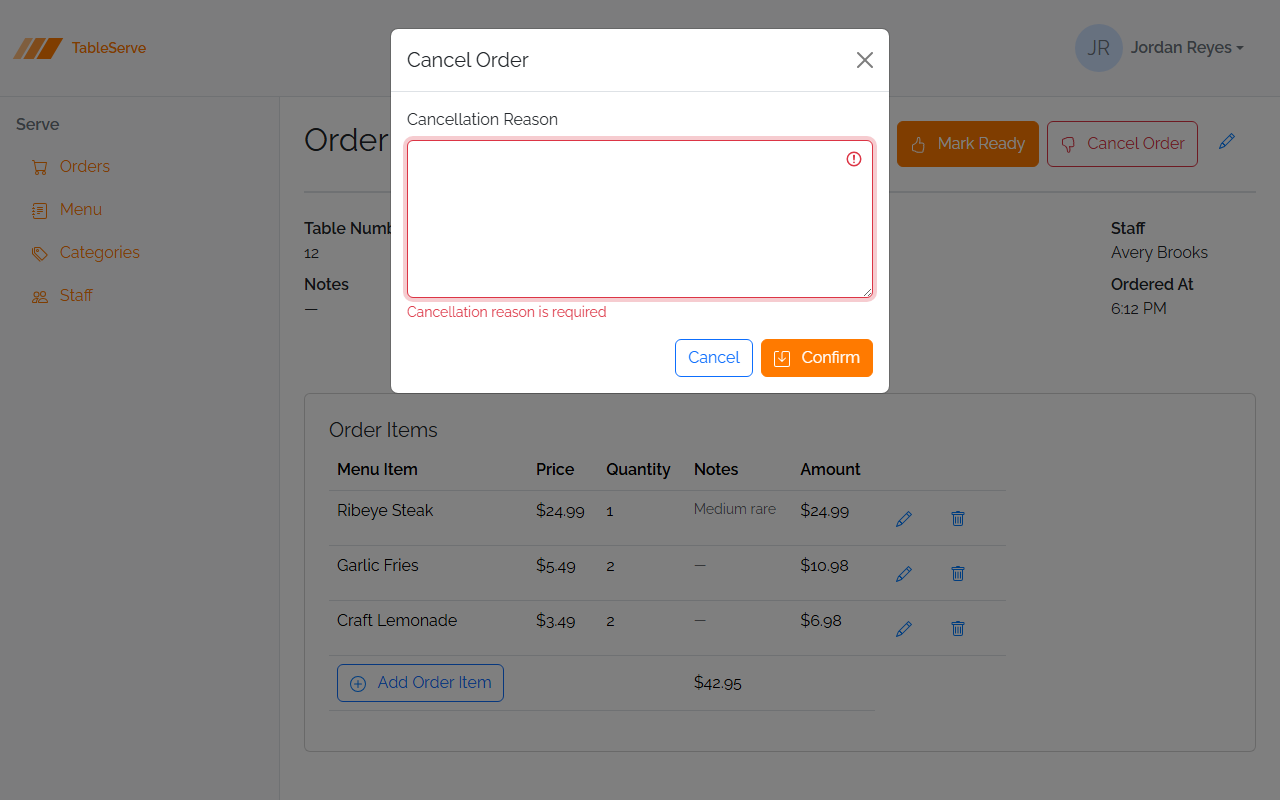
7. maxlength: an attribute, not a message
required and min are checked when you submit and show a message. maxlength is
different on purpose — it's a native HTML attribute that stops input at the limit as
you type, and truncates a paste to fit. You literally cannot exceed it in the field,
so there's no error state to show and nothing for the script to check. That's the right
tool when the only goal is "don't let the value get too long."
This is the one place the static pass and React deliberately diverge, and it's worth knowing why:
- Here (static): a native
maxlengthblocks overflow. Simple, and impossible to exceed. - In React (Lesson 7):
react-hook-formuses amaxLengthrule instead, which doesn't block typing — it validates on submit and shows "Exceeded maximum length." That version can be triggered (paste a long value) — and, importantly, bypassed (client validation is a convenience, not a security boundary). React Lesson 7 uses exactly that to show why a real app must also validate on the server.
For now: use maxlength on Staff's Username (50) and Password (60). Just know the
message-based version is coming, and why.
8. Verifying in the browser
With npm run dev running:
/signin.html— click Sign in empty → both fields red with messages. Fill both → navigates to/orders.html./staff-create.html— Save staff empty → the four required fields red, Email and Phone clean. Fill the required four → navigates to/staff.html./order-detail.html→ Cancel Order → Confirm empty → the textarea goes red, modal stays open. Add a reason → navigates to/orders.html.- On any of them, open DevTools → Elements, submit empty, and watch
is-invalidget added to the failing control (and removed when you fix it and resubmit). - Check the Console for errors — a
404on/js/validation.jsmeans the script tag path or the file location is wrong.
9. How this maps to React
The markup you just wrote is the markup react-hook-form renders. In React Lesson 7 the
Staff form's Username field is:
<input
  className={`form-control ${errors?.username && "is-invalid"}`}
  {...register("username", { required: "Username is required" })}
/>
<div className="invalid-feedback">{errors?.username?.message}</div>
Same is-invalid class, same .invalid-feedback sibling. React toggles the class and
fills the message from errors; your static script just toggles the class, with the
message pre-written in the div. Your data-success navigation becomes
navigate("/staff") after a successful save. Nothing about the error layout changes —
you already built it.
The General Pattern (what to take away)
- A field's error state is one class on the control (
is-invalid) plus a sibling.invalid-feedbackmessage — revealed by CSS, no script needed to show it. - Adding hidden message slots to a finished form is appearance-neutral — do it to every field so the markup is complete.
- When the class appears is the only question: by hand to learn it, on submit for
a real form.
js/validation.jsadds it on submit forrequiredandmin. maxlengthblocks overflow as an attribute — no message, can't be exceeded. A message-based length rule is a React-pass topic.- This is
react-hook-form's error state, hand-built — the React conversion is a swap, not a rewrite.
On PRS: every form (Users, Vendors, Products, Requests, RequestLines) gets the same
required markup + the script; the Reject modal is this Cancel modal; and the
RequestLine quantity uses the min rule you'll build in the lab. Your finished,
validated PRS static pages are what your peers review against the error-state
screenshots.
Build Steps
- Confirm
js/validation.jsis in your starter (or create it from section 4). - In
signin.html, addrequired+ an.invalid-feedbackdiv to Username and Password; addnovalidate data-success="/orders.html"to the form; change the Sign in<a>to a<button type="submit">. - In
staff-create.html, addrequired+ message divs to First Name, Last Name, Username, Password; addmaxlength="50"/maxlength="60"to Username/Password; addnovalidate data-success="/staff.html"to the form. - In
order-detail.html, addnovalidate data-success="/orders.html"to the Cancel modal's form (its required textarea + message already exist). - Verify all three in the browser per section 8, watching
is-invalidtoggle in DevTools.