Lesson 5 Guide — Detail Pages, Modals, the Nested Child Form, and Sign In
Goal: by the end of this lesson you have the Order Detail page (a summary header, a nested Order Items table, status-driven workflow buttons, a Cancel modal with a required reason, and a delete confirmation modal), the Order Item create form (a nested child form), and the Sign In page (a centered card). These are the last markup patterns before the capstone — the detail/workflow page and the modal are the ones PRS's Request Detail leans on hardest.
The general pattern you're learning: a detail page shows one record's fields in a definition list, lists its child records in a table, and offers actions that depend on the record's current status. A modal is a dialog Bootstrap shows on top of the page — used both for confirming a destructive action and for collecting a required reason before a state change. A nested child form creates a record that belongs to a parent (an Order Item under an Order).
How to use this guide. Sections marked ▶ Code along are hands-on — build them into your project as you read. This is a build-heavy lesson: only the opening "detail page anatomy" is concept; every section after it assembles real page markup. Read the anatomy first, then code along the rest and in the lab.
End goal — what you're building. The headline page is Order Detail: a summary, a nested Order Items table, workflow buttons, and two modals.
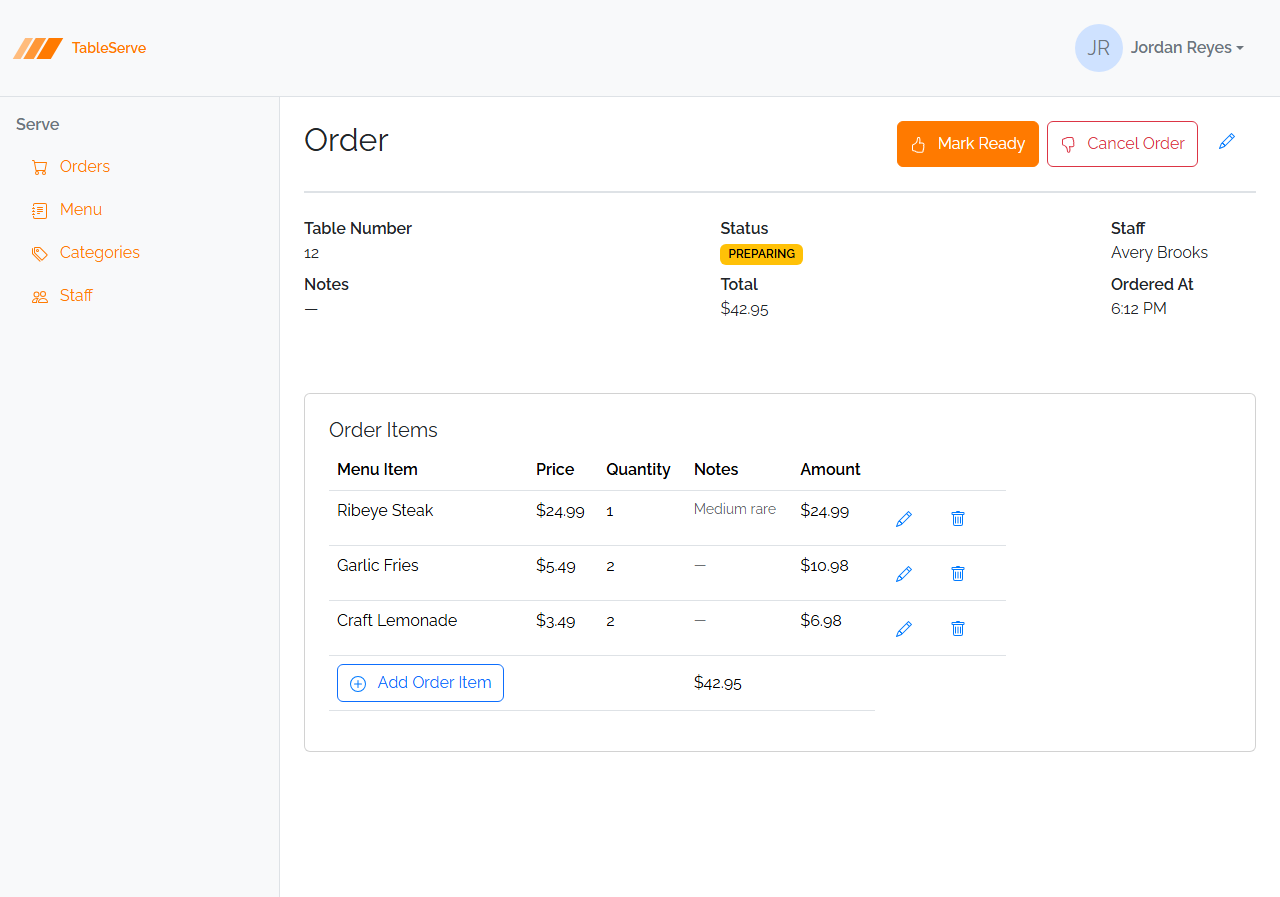
The Cancel and delete modals, the Order Item form, and the Sign In page follow in sections 5–7.
1. The detail page anatomy
order-detail.html shows a single order. It has three stacked pieces inside
section.content:
- A heading row with the title and the workflow/action buttons.
- A summary — the order's own fields in a
.detail-header. - A card holding the Order Items child table.
Plus two modals (Cancel, and delete-order-item) that live in the markup but stay hidden until triggered.
2. ▶ Code along — the heading row with workflow buttons
The detail heading is the same justify-content-between row as a list page, but the
right side holds action buttons instead of a single "Create" button:
<div class="d-flex justify-content-between pb-4 mb-4 border-bottom border-2">
  <h2>Order</h2>
  <div class="d-flex justify-content-end gap-2">
    <button type="button" class="btn btn-primary">
      <svg class="bi pe-none me-2" width="16" height="16" fill="#FFFFFF">
        <use href="/assets/bootstrap-icons.svg#hand-thumbs-up" />
      </svg>
      Mark Ready
    </button>
    <button type="button" class="btn btn-outline-danger" data-bs-toggle="modal" data-bs-target="#cancelModal">
      <svg class="bi pe-none me-2" width="16" height="16" fill="currentColor">
        <use href="/assets/bootstrap-icons.svg#hand-thumbs-down" />
      </svg>
      Cancel Order
    </button>
    <a href="/order-edit.html" class="btn btn-outline">
      <svg class="bi pe-none me-2" width="16" height="16" fill="#007AFF">
        <use href="/assets/bootstrap-icons.svg#pencil" />
      </svg>
    </a>
  </div>
</div>
Workflow buttons depend on status
TableServe's order workflow is linear: Placed → Preparing → Ready → Served,
with Cancelled as a branch off Placed/Preparing. The advance button that shows
depends on the current status:
| Current status | Advance button shown | Cancel button? |
|---|---|---|
| Placed | Start Preparing | yes |
| Preparing | Mark Ready | yes |
| Ready | Mark Served | no |
| Served | (none — terminal) | no |
| Cancelled | (none — terminal) | no |
In the static pass you can't compute "current status," so build the page for one representative state — a Preparing order shows "Mark Ready" plus "Cancel Order". Add an HTML comment noting the other states' buttons so the intent is recorded. (In React this becomes conditional rendering — you'll show the right button based on the fetched status. This is the same shape as PRS's Request Detail, which shows Send-for-Review / Approve / Reject depending on the request's status.)
The Cancel Order button uses btn-outline-danger (a red-outline warning) and,
crucially, opens the Cancel modal via data-bs-toggle="modal"
data-bs-target="#cancelModal" — it doesn't act directly, because cancelling
requires a reason (section 5).
Save and check
- The Order heading sits left, the buttons right, on one row above a bottom border.
- Only the buttons for this order's status render — a Preparing order shows Mark Ready and Cancel Order, not Start Preparing.
- Cancel Order is the red-outlined one. Clicking it does nothing yet — the modal arrives in section 5.
3. ▶ Code along — the summary: .detail-header with definition lists
The order's own fields render as a definition list (<dl> / <dt> / <dd>) —
the right semantic element for label/value pairs. Three <dl>s sit side by side in a
.detail-header flex row:
<section class="detail-header justify-content-between pe-5">
  <dl>
    <dt>Table Number</dt>
    <dd>12</dd>
    <dt>Notes</dt>
    <dd>—</dd>
  </dl>
  <dl>
    <dt>Status</dt>
    <dd><span class="badge text-bg-warning">PREPARING</span></dd>
    <dt>Total</dt>
    <dd>$42.95</dd>
  </dl>
  <dl>
    <dt>Staff</dt>
    <dd>Avery Brooks</dd>
    <dt>Ordered At</dt>
    <dd>6:12 PM</dd>
  </dl>
</section>
<dt>is the term (label),<dd>is the description (value) — semantic and screen-reader-friendly, cleaner than a pile of<div>s..detail-headeris a small custom class instyles.css(display:flex; flex-wrap:wrap; gap:1rem) — the one place the design uses a named class instead of utilities, because this two/three-column detail layout recurs on every detail and form page.- Status reuses the contextual badge from Lesson 4, matching the order's status color.
- When status is Cancelled, also show the Cancellation Reason as a
<dt>/<dd>pair — it's only meaningful in that state.
Save and check
- The summary reads as columns of label-over-value pairs, not one long list — that's
.detail-headerdoing the flex layout. - The Status value is a colored badge matching the order's status.
- Narrow the window — the columns wrap instead of squashing.
- Cancellation Reason shows only on a Cancelled order.
4. ▶ Code along — the nested child table
Below the summary, a card holds the order's Order Items — the child records. It's a table with a running Total in the footer:
<div class="card p-4 mt-5">
  <h5 class="card-title">Order Items</h5>
  <table class="table w-75">
    <thead>
      <tr>
        <th>Menu Item</th><th>Price</th><th>Quantity</th><th>Notes</th><th>Amount</th><th></th>
      </tr>
    </thead>
    <tbody>
      <tr>
        <td>Ribeye Steak</td>
        <td>$24.99</td>
        <td>1</td>
        <td class="text-body-secondary small">Medium rare</td>
        <td>$24.99</td>
        <td>
          <a href="/orderitem-edit.html" class="btn btn-outline">
            <svg class="bi pe-none me-2" width="16" height="16" fill="#007AFF"><use href="/assets/bootstrap-icons.svg#pencil" /></svg>
          </a>
          <button type="button" class="btn btn-outline" data-bs-toggle="modal" data-bs-target="#deleteOrderItemModal">
            <svg class="bi pe-none me-2" width="16" height="16" fill="#007AFF"><use href="/assets/bootstrap-icons.svg#trash" /></svg>
          </button>
        </td>
      </tr>
      <!-- more item rows -->
    </tbody>
    <tfoot>
      <tr>
        <td>
          <a href="/orderitem-create.html" class="btn btn-outline-primary">
            <svg class="bi pe-none me-2" width="16" height="16" fill="#007AFF"><use href="/assets/bootstrap-icons.svg#plus-circle" /></svg>
            Add Order Item
          </a>
        </td>
        <td></td><td></td><td>$42.95</td><td></td>
      </tr>
    </tfoot>
  </table>
</div>
- Each row shows the item's Menu Item name, Price, Quantity, Notes (muted), and Amount (Price × Quantity — precomputed here, hardcoded).
- The action cell has an Edit link and a Delete button (the delete opens
#deleteOrderItemModal). These use icon-onlybtn-outlinebuttons — tighter than a 3-dots menu because there are only two actions and space is tight in a row. - The
<tfoot>holds the Add Order Item button (links to the nested create form) and the order Total aligned under the Amount column. Footer = "add more" and "running total" — a recognizable child-table convention.
Save and check
- The items table lists one row per order item, with Amount filled in per row.
- The footer holds Add Order Item on the left and the Total aligned under the Amount column.
- Each row has icon-only Edit and Delete buttons. Neither goes anywhere useful yet — Delete's modal is next, and the form comes in section 6.
5. ▶ Code along — Modals
A modal is a dialog Bootstrap overlays on the page. The markup sits inert in the
page until something with data-bs-toggle="modal" data-bs-target="#itsId" opens it —
no JavaScript of yours, just Bootstrap's bundle. There are two kinds here.
5a. The confirmation modal (delete)
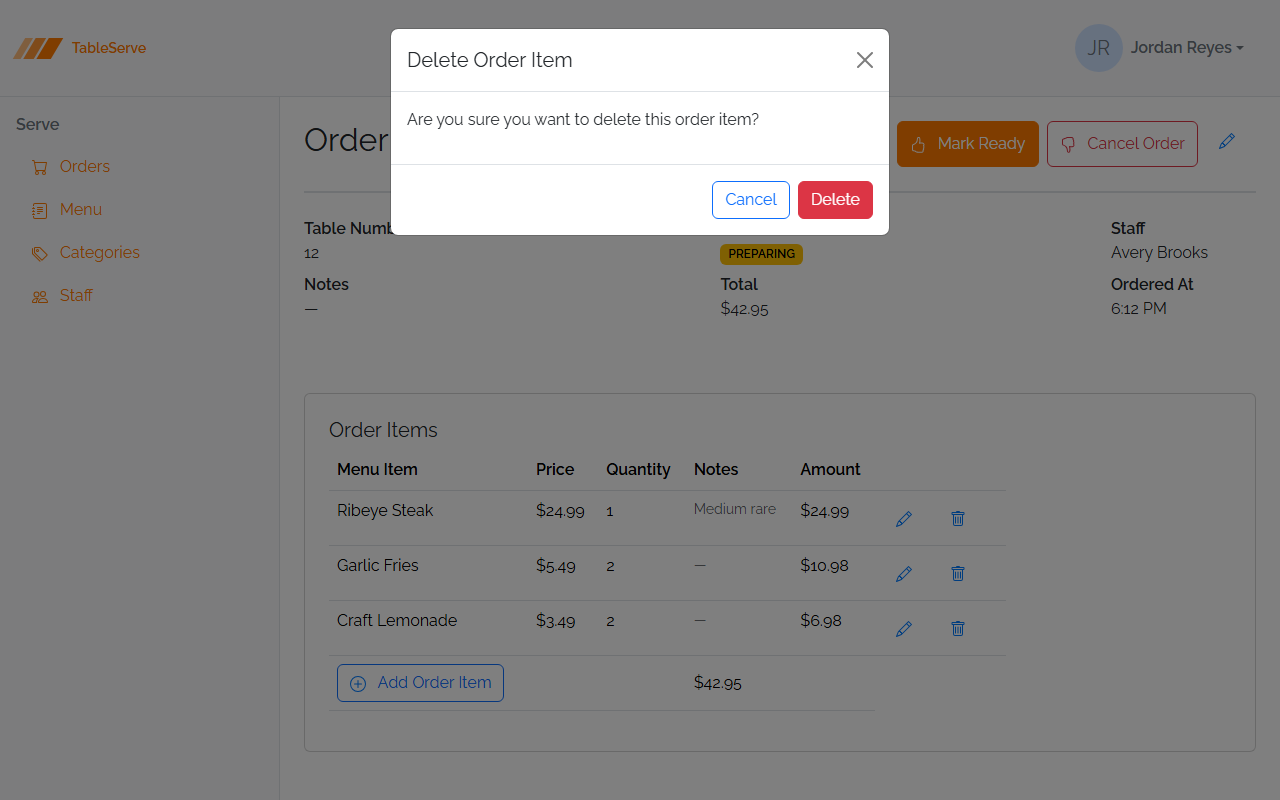
The simplest modal: a message and Cancel/confirm buttons. Used for destructive actions so a misclick doesn't delete data.
<div class="modal fade" id="deleteOrderItemModal" tabindex="-1" aria-hidden="true">
  <div class="modal-dialog">
    <div class="modal-content">
      <div class="modal-header">
        <h5 class="modal-title">Delete Order Item</h5>
        <button type="button" class="btn-close" data-bs-dismiss="modal" aria-label="Close"></button>
      </div>
      <div class="modal-body">
        <p>Are you sure you want to delete this order item?</p>
      </div>
      <div class="modal-footer">
        <button type="button" class="btn btn-outline-primary" data-bs-dismiss="modal">Cancel</button>
        <button type="button" class="btn btn-danger" data-bs-dismiss="modal">Delete</button>
      </div>
    </div>
  </div>
</div>
The structure is always the same: .modal > .modal-dialog > .modal-content, then
.modal-header (title + btn-close), .modal-body, .modal-footer (buttons).
data-bs-dismiss="modal" closes it. The id here (deleteOrderItemModal) must
match the data-bs-target on whatever opened it. Every list page you've built
references a delete modal like this — now you build the modal itself.
5b. The reason modal (Cancel Order)
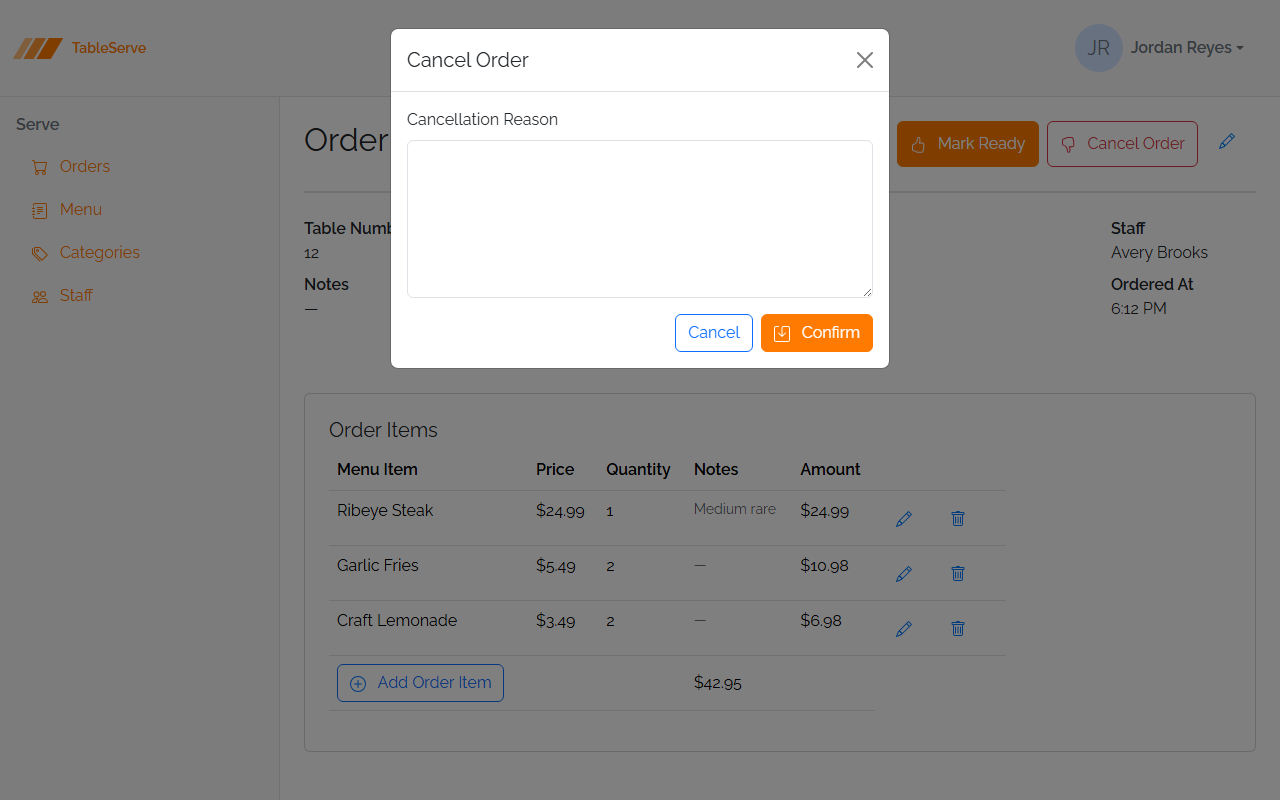
Cancelling an order isn't just a yes/no — it requires a reason. So this modal's body holds a form with a required textarea:
<div class="modal fade" id="cancelModal" tabindex="-1" aria-hidden="true">
  <div class="modal-dialog">
    <div class="modal-content">
      <div class="modal-header">
        <h5 class="modal-title">Cancel Order</h5>
        <button type="button" class="btn-close" data-bs-dismiss="modal" aria-label="Close"></button>
      </div>
      <div class="modal-body">
        <form>
          <div class="mb-3">
            <label class="form-label" for="cancellationReason">Cancellation Reason</label>
            <textarea class="form-control" id="cancellationReason" rows="6" required></textarea>
            <div class="invalid-feedback">Cancellation reason is required</div>
          </div>
          <div class="d-flex justify-content-end gap-2">
            <button type="button" class="btn btn-outline-primary" data-bs-dismiss="modal">Cancel</button>
            <button type="submit" class="btn btn-primary">
              <svg class="bi pe-none me-2" width="16" height="16" fill="#FFFFFF"><use href="/assets/bootstrap-icons.svg#save" /></svg>
              Confirm
            </button>
          </div>
        </form>
      </div>
    </div>
  </div>
</div>
- The
<textarea class="form-control" required>collects the reason;requiredmarks it mandatory. <div class="invalid-feedback">is Bootstrap's slot for the validation message — it shows when the field is invalid (React/Bootstrap validation reveals it; in the static pass it's in place, ready).- The footer buttons live inside the form: Cancel dismisses; Confirm is the
type="submit".
This is the pattern PRS's Reject modal uses exactly — a required
rejectionReason before a status change. Cancel-Order here is the rehearsal for
Reject-Request there.
Save and check
- Cancel Order now opens the modal over a dimmed page; Cancel and the close button both dismiss it.
- The delete-confirm modal opens from a row's trash button and reads as a confirmation, not a form.
- If nothing opens, the Bootstrap JS bundle at the end of
<body>(Lesson 3) is missing — modals are the first thing on these pages that needs it.
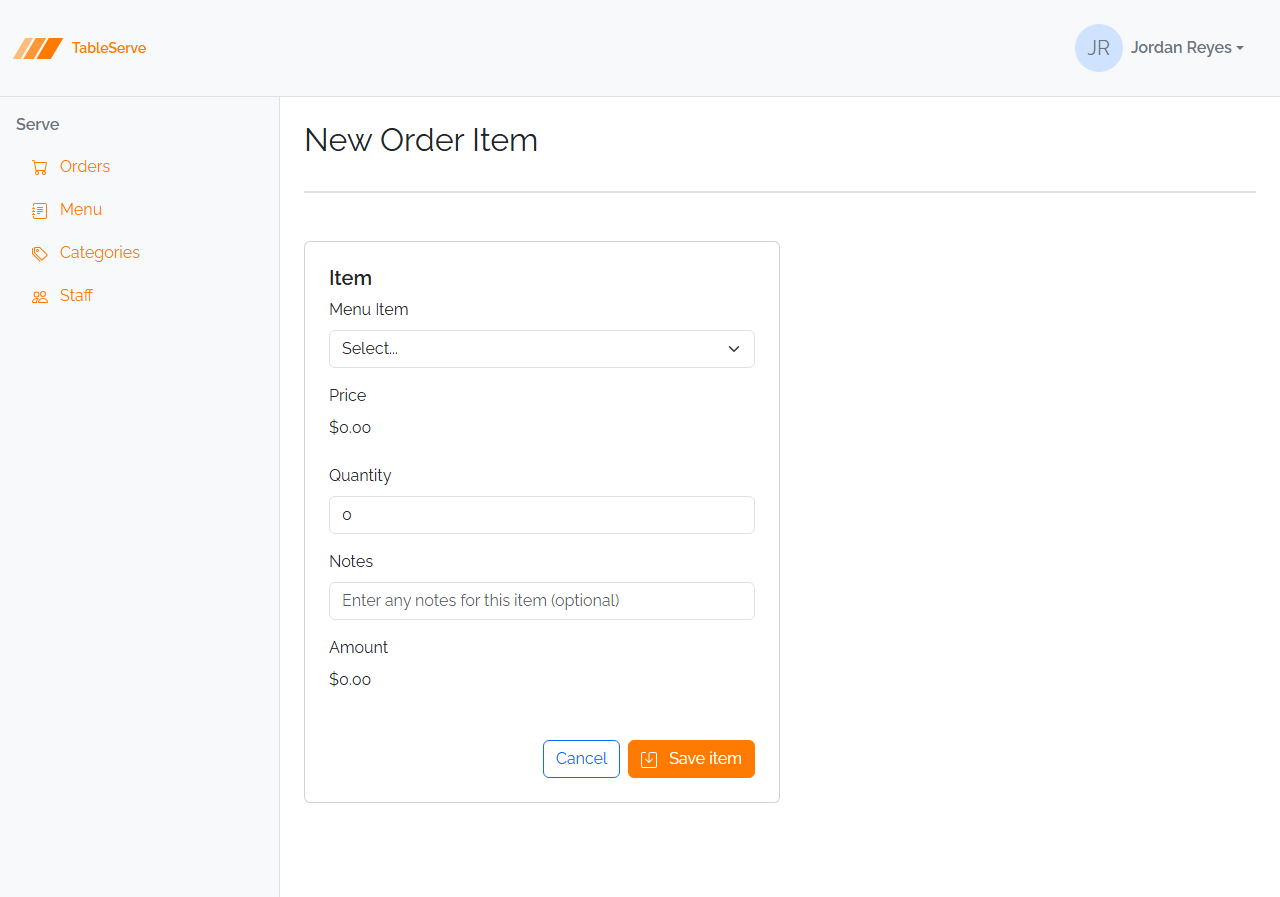
6. ▶ Code along — the nested child form: Order Item Create
orderitem-create.html creates a child record under an order. It's a form like
Lesson 4's, with two twists: it's scoped to a parent (Cancel returns to the order
detail, not a list), and it has derived display fields (Price and Amount) that
depend on the chosen menu item and quantity.
<form class="form w-50">
  <div class="card p-4">
    <h5 class="card-title"><strong>Item</strong></h5>

    <div class="mb-3">
      <label for="menuItemId" class="form-label">Menu Item</label>
      <select id="menuItemId" class="form-select">
        <option value="0" selected>Select...</option>
        <option value="1">Loaded Nachos</option>
        <option value="2">Mozzarella Sticks</option>
        <!-- ...all menu items -->
      </select>
    </div>

    <div class="mb-3">
      <label for="price" class="form-label">Price</label>
      <div class="form-label">$0.00</div>
    </div>

    <div class="mb-3">
      <label for="quantity" class="form-label">Quantity</label>
      <input id="quantity" type="number" class="form-control" value="0" />
    </div>

    <div class="mb-3">
      <label for="notes" class="form-label">Notes</label>
      <input id="notes" type="text" class="form-control" placeholder="Enter any notes for this item (optional)" />
    </div>

    <div class="mb-3">
      <label for="amount" class="form-label">Amount</label>
      <div class="form-label">$0.00</div>
    </div>

    <div class="d-flex justify-content-end mt-4">
      <a href="/order-detail.html" class="btn btn-outline-primary me-2">Cancel</a>
      <button type="submit" class="btn btn-primary">
        <svg class="bi pe-none me-2" width="16" height="16" fill="#FFFFFF"><use href="/assets/bootstrap-icons.svg#save" /></svg>
        Save item
      </button>
    </div>
  </div>
</form>
- Menu Item is an FK dropdown (like Category on the Menu form) — its options are
the menu items,
value= menu item id. - Price and Amount are display-only — rendered as
<div class="form-label">text, not inputs. They're derived: Price comes from the selected menu item; Amount = Price × Quantity. In the static pass they show$0.00placeholders. (In React, Lesson 8, selecting a menu item fills Price, and changing Quantity recomputes Amount live.) - Notes is the optional per-item text field (TableServe's addition over PRS's RequestLine).
- Cancel returns to
/order-detail.html— the parent — because this child form is reached from the order, not from a top-level list. That parent-scoping is the signature of a nested form.
Save and check
- The form renders inside a card titled Item, reached from the order's Add Order Item button.
- Price and Amount are display-only text, not inputs — you can't type into them.
- Cancel goes back to the order detail page, not to a list. That parent-scoping is the whole point of a nested form.
On PRS this is the RequestLine form (Product dropdown, Quantity, derived Amount) — minus the Notes field.
7. ▶ Code along — the Sign In page
Sign In is the one page without the header/nav shell — it's a centered card on a
tinted full-height background. The <body> gets the signin class (the orange
radial gradient from styles.css):
<body class="signin">
  <main class="d-flex flex-column gap-4 justify-content-center align-items-center min-vh-100">
    <svg xmlns="http://www.w3.org/2000/svg" width="98" height="40" viewBox="0 0 78 32" fill="none">
      <path d="M55.5 0H77.5L58.5 32H36.5L55.5 0Z" fill="#FF7A00" />
      <path d="M35.5 0H51.5L32.5 32H16.5L35.5 0Z" fill="#FF9736" />
      <path d="M19.5 0H31.5L12.5 32H0.5L19.5 0Z" fill="#FFBC7D" />
    </svg>
    <span class="mx-2 fw-semibold" style="color: #FF7A00">TableServe</span>
    <div class="card w-25 h-25 p-4">
      <h4 class="card-title">Sign in</h4>
      <form class="d-flex flex-column">
        <div class="mb-3">
          <label for="username" class="form-label">Username</label>
          <input id="username" type="text" class="form-control" />
        </div>
        <div class="mb-1">
          <label for="password" class="form-label">Password</label>
          <input id="password" type="password" class="form-control" />
        </div>
        <div class="mb-4 form-text"><a href="#">Forgot It?</a></div>
        <div class="mb-3 d-grid gap-2">
          <a href="/orders.html" class="btn btn-lg btn-primary">Sign in</a>
        </div>
      </form>
    </div>
  </main>
</body>
- Centering is pure flexbox:
d-flex flex-column justify-content-center
  align-items-center min-vh-100
centers the logo + card both ways on a full-height screen. - The brand SVG logo sits above the card; the card holds the username/password form.
d-grid gap-2on the button wrapper makes the Sign in button full-width.- In the static pass the Sign in button is an
<a>straight to/orders.html— no real auth. (In React, Lesson 9, this posts to the login endpoint and stores the Staff object in localStorage.)
Save and check
- Sign In fills the whole window on the gradient, with no header or nav — it's outside the shell every other page shares.
- The logo sits above a centered card, and the Sign in button spans the card's full
width (
d-grid). - Clicking Sign in lands on
/orders.html— no credentials checked, which is correct for the static pass.
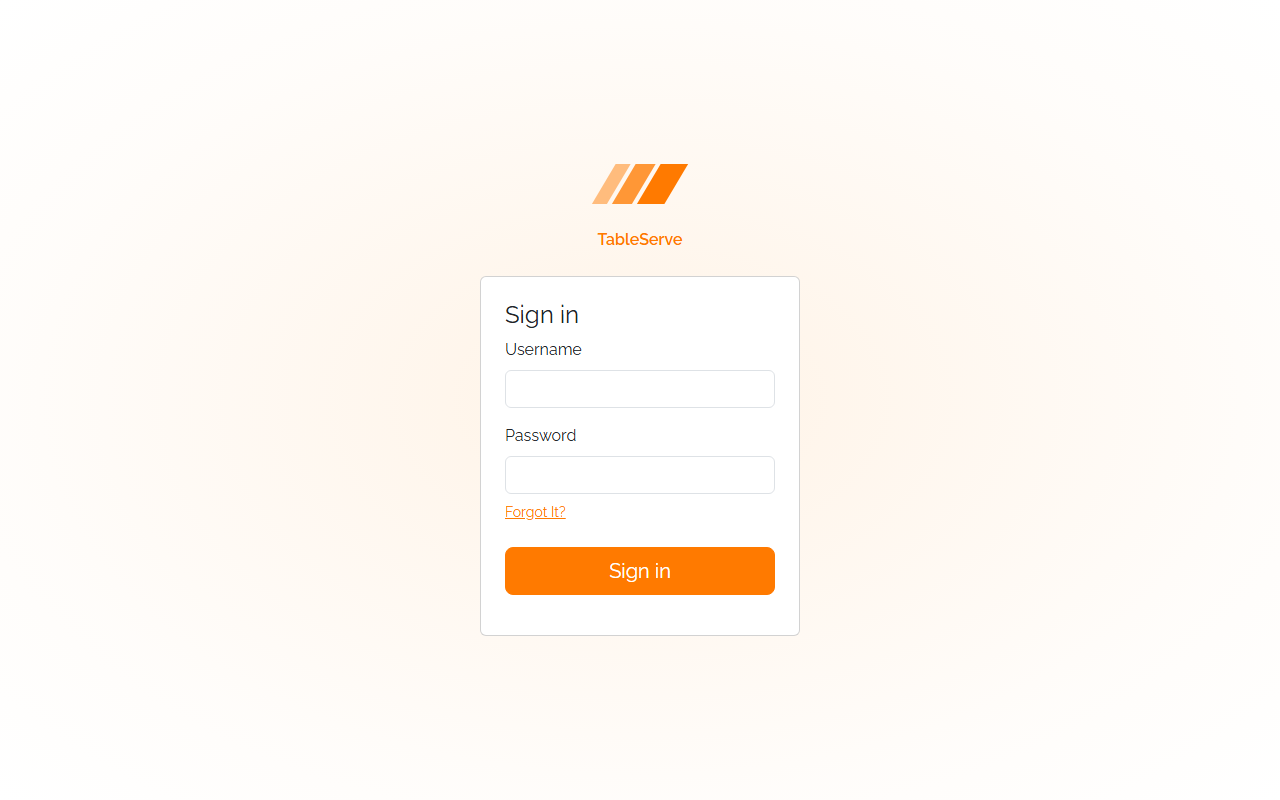
8. Verifying in the browser
With npm run dev running:
- Open
/order-detail.html— confirm the three-part layout: heading with Mark Ready + Cancel Order buttons, the.detail-headersummary (with a status badge), and the Order Items card with rows and a Total in the footer. - Click Cancel Order — the Cancel modal should slide in with a textarea labeled "Cancellation Reason." Click Cancel or the ✕ to dismiss.
- Click a row's trash button — the delete confirmation modal should appear.
Dismiss it. (If a modal doesn't open, check the button's
data-bs-targetmatches the modal'sid, and that the JS bundle is loaded.) - Click Add Order Item — you should land on
/orderitem-create.html. Confirm the Menu Item dropdown, the display-only Price/Amount ($0.00), the Quantity and Notes inputs, and that Cancel returns to the order detail. - Open
/signin.html— the logo + card should be centered on the orange gradient, with no header/nav. Click Sign in and confirm it navigates to/orders.html. - Check the Console for 404s on each page.
The General Pattern (what to take away)
- A detail page = heading with status-dependent action buttons, a
.detail-headerdefinition-list summary, and a child table (with add + running total in the footer). - A modal =
.modal > .modal-dialog > .modal-contentwith header/body/footer, opened by a matchingdata-bs-target, closed bydata-bs-dismiss. Use a confirmation modal for deletes and a reason modal (required textarea +invalid-feedback) before a state change. - A nested child form is scoped to its parent: FK dropdown for the related record, derived display fields, and Cancel returns to the parent detail.
- Sign In drops the shell for a flexbox-centered card on the
signinbackground.
On PRS: Request Detail is this detail page (Send-for-Review/Approve/Reject buttons, the Reject modal = the Cancel modal), RequestLine create/edit is the nested form, and the User sign-in page is this Sign In.
Build Steps
- In
order-detail.html, build the heading row (section 2) with a Mark Ready button and a Cancel Order button that targets#cancelModal. Comment the other statuses' buttons. - Add the
.detail-headersummary (section 3) with three<dl>columns and a status badge. - Add the Order Items card table (section 4): item rows with Edit/Delete actions
and a
<tfoot>with Add Order Item and the Total. - Add the delete confirmation modal (
#deleteOrderItemModal, section 5a) and the Cancel reason modal (#cancelModalwith a required textarea, section 5b). - Create
orderitem-create.html(section 6): Menu Item FK dropdown, display-only Price/Amount, Quantity, Notes, and a Cancel that returns to/order-detail.html. - Create
signin.html(section 7):body.signin, centered logo + card, username / password form, Sign in →/orders.html. - Confirm
orderDetail,orderitemCreate, andsigninare invite.config.js. - Verify every page and both modals in the browser using section 8.