Lesson 3 Lab — Staff Page Skeleton
Build the Staff page skeleton by hand — the same shell + heading pattern the guide
built for orders.html, on a different page. staff.html ships blank (just the
<head>) for exactly this reason: you build its body yourself. Skeleton = the page
shell plus the heading row only — no cards or forms yet (those come in Lesson 4). Refer
back to the guide (sections 6 and 7) for the shell and heading markup.
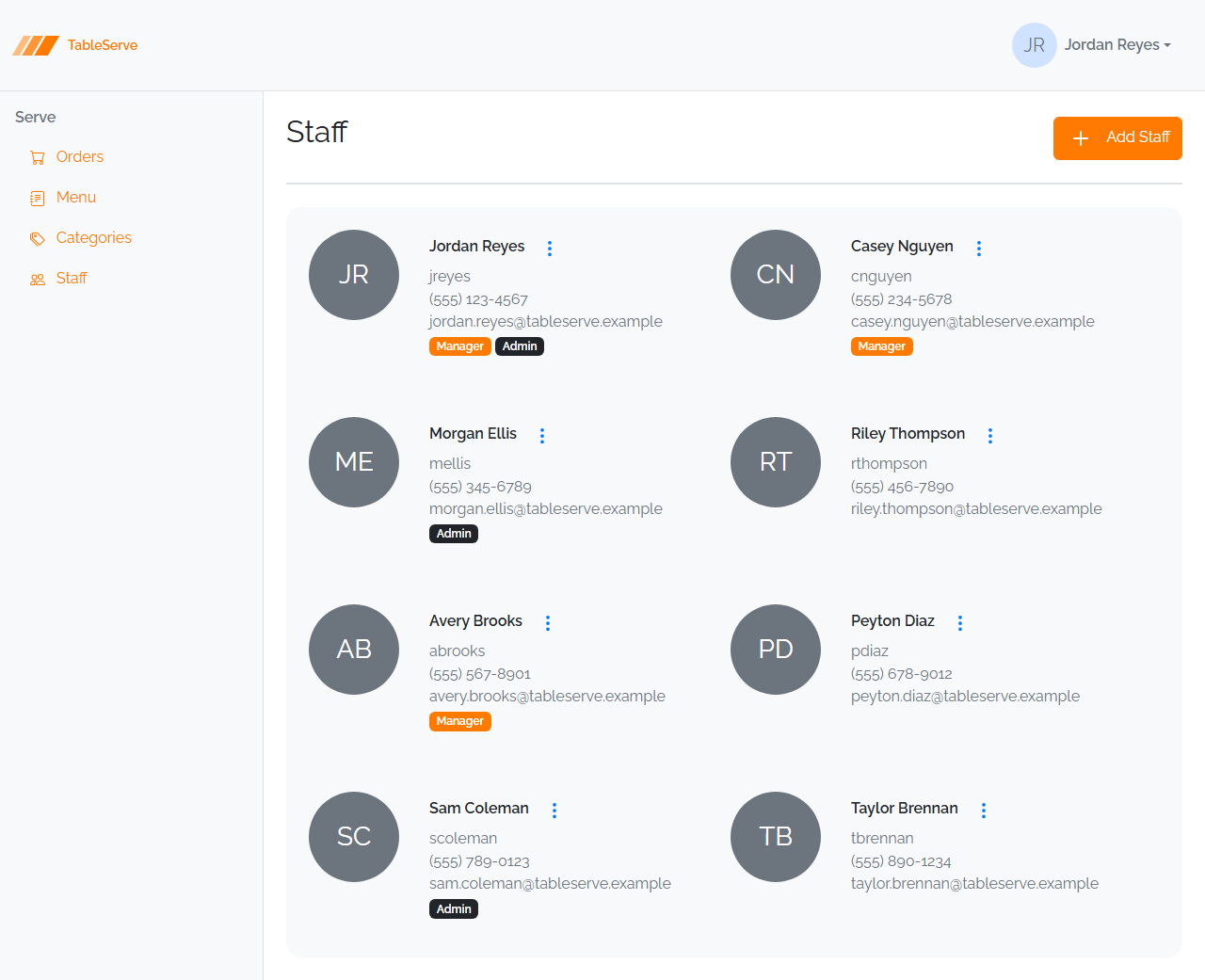
End goal. You're building the empty shell here — header, nav, and a heading row, with nothing below. To see the finished page it grows into over Lessons 4–5, browse the Staff page in
screenshots/tableserve/. Don't build the cards yet; just the frame.
Steps
- Open
staff.html— click its link on theindex.htmlpage directory in the browser and open the file in VS Code for editing. It's blank below the<head>(the<head>, with the correct<title>and stylesheet links, is already there). - Build the page shell into the empty
<body>(guide section 6), in order: {{> header}}<main class="d-flex">containing{{> nav}}and<section class="content p-4 flex-grow-1">- the Bootstrap JS bundle
<script>as the last line of<body> - Inside
section.content, add the heading row (guide section 7):<div class="d-flex justify-content-between pb-4 mb-4 border-bottom border-2">with an<h2>Staff</h2>and an Add Staff primary button linking to/staff-create.html. - For the button icon, reuse the
<svg><use href="/assets/bootstrap-icons.svg#plus" /></svg>pattern from the guide. - Leave everything below the heading empty (a placeholder comment) — the staff cards come in Lesson 4.
staff.htmlis already listed in theinputobject ofvite.config.js— nothing to add there.
Verify in the browser
Browser setup (running npm run dev, opening pages, DevTools) is covered in the
guide — section 8. With the dev server running:
- Open
/staff.htmland confirm the header + nav + heading render, matching theorders.htmlyou built in the guide. - Click the nav links — each should navigate between your pages.
- Confirm the Add Staff button is pinned to the right of the heading row, with the rule underneath.
- Resize the window and confirm the content area flexes beside the fixed-width
nav (
flex-grow-1). - Check the Console (F12) for 404s.
You just stood up the same shell the guide built for Orders, on a second page — this is exactly what you'll do to stand up every PRS page (Requests, Products, Vendors, Users, Request Detail) in the capstone.
Stretch challenges
Optional — for when you finish early. Not needed for the capstone. [Reinforce] builds on what you just did; [Reach] goes past the guide and needs some research.
- Heading rows for the other list pages — [Reinforce] — the skeletoned
menuitems.htmlandcategories.htmlalready ship with the shell but an empty content area. Add the samejustify-content-betweenheading row to each — Menu / Add Item →/menuitem-create.html, and Categories / Add Category →/category-create.html. It's a head start on Lesson 4. - Active nav link — [Reinforce] — Bootstrap's nav-pills style an
activelink differently. Addclass="nav-link active"to the current page's link in a copy of the nav and confirm it takes the orange highlight fromstyles.css. (In React you'll set this dynamically; here just prove you can see the active state.) - Inspect the box model — [Reinforce] — in DevTools, select your heading row and
read off the computed
padding,margin, andbordervalues thepb-4 mb-4 border-bottom border-2classes produced. Match each number back to a layer of the box-model diagram in the guide. - Read Bootstrap's source — [Reinforce] — open the unminified
node_modules/bootstrap/dist/css/bootstrap.cssand find the rules for three classes you used on the Staff skeleton —.btn-primary,.d-flex, and.border-bottom. Confirm each is ordinary CSS you could have written yourself, exactly as the guide's section 5 says. - A print stylesheet — [Reach] — the box model and CSS you're learning aren't
Bootstrap-only. Add a
@media print { ... }block to a page that hides the nav when printed. Not covered in the guide — you'll need to research media queries. Start here: Using media queries (MDN).
Finished these and want more? See stretch-html-css-challenges.md for bigger challenges that span the whole HTML/CSS pass.