Lesson 4 Lab — Staff List and Staff Form
Build the Staff card grid and the shared Staff Create/Edit form, following the Menu Items patterns from the guide. Staff is a card grid (like Menu Items) but its form has no FK dropdown — instead it has role checkboxes. Refer back to the guide for the card, dropdown, and shared-form markup.
End goal. Build toward the finished Staff page below. Match the layout by hand from the guide's card and form patterns — the classes aren't listed here on purpose.
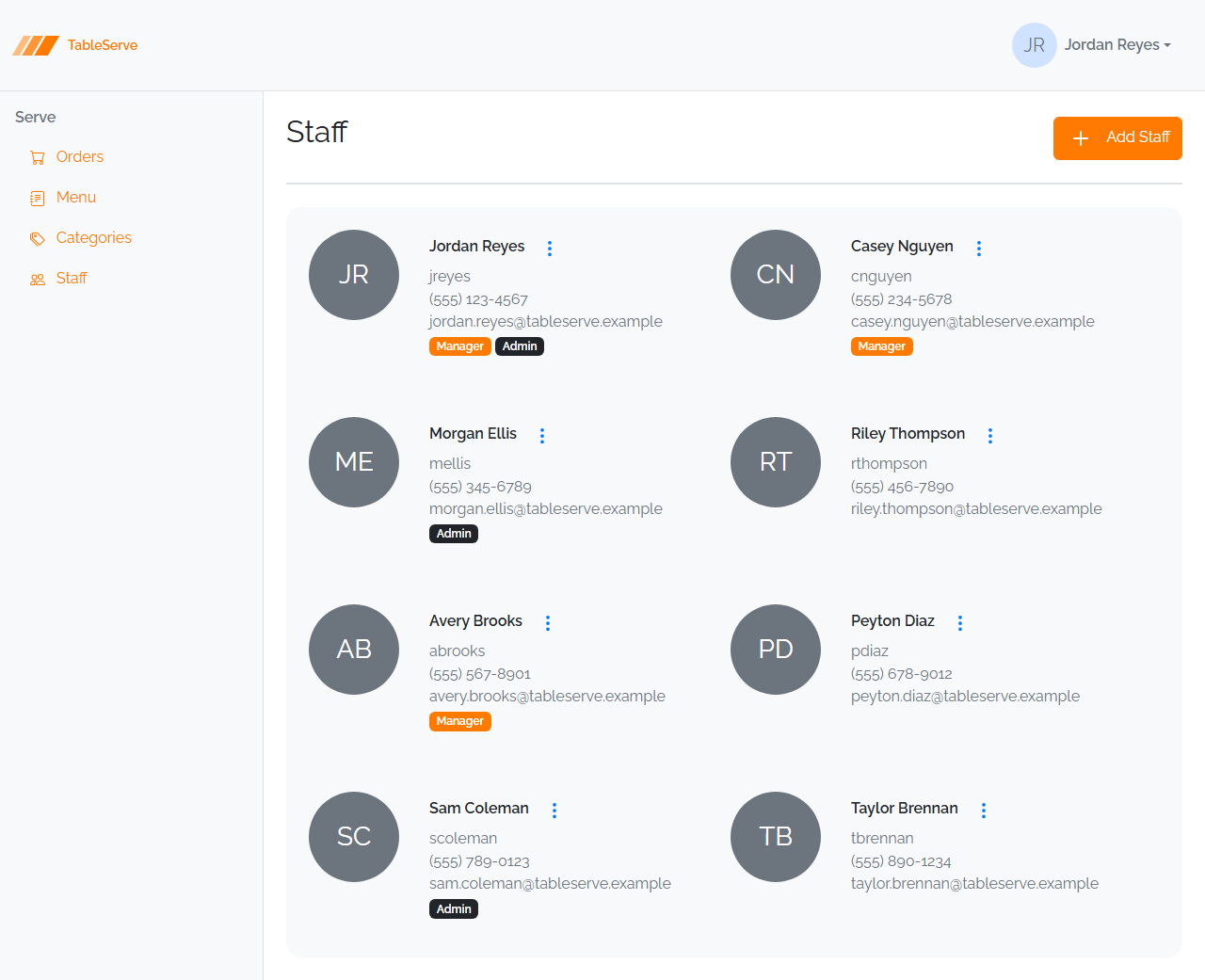
The avatar circle with initials on each card (e.g. "JR") is the optional stretch challenge below — the base lab's cards don't need it. Everything else in the shot is in scope.
The Staff record
Each staff member has: First Name, Last Name, Username, Password, Phone (optional), Email (optional), and two role flags — IsManager and IsAdmin.
Hardcode several staff members across the roles: some Managers, some Admins, some both, some neither.
Part A — staff.html (card grid)
- In your
staff.htmlskeleton, add the.list d-flex flex-row flex-wrap ... gap-5tray (same as Menu Items). - Add one card per staff member. Each card shows:
- First + Last name (
<strong>inside the card's content<div>) - Username, Phone, and Email as muted lines (
<span class="text-secondary">) - Role badges — only when the flag is true:
<span class="badge text-bg-primary mt-1">Manager</span>and/or<span class="badge text-bg-dark mt-1">Admin</span> - Add the 3-dots dropdown to each card with Edit and Delete (Delete
targets
#deleteStaffModal, same wiring as Menu Items).
Part B — staff-create.html and staff-edit.html (shared form)
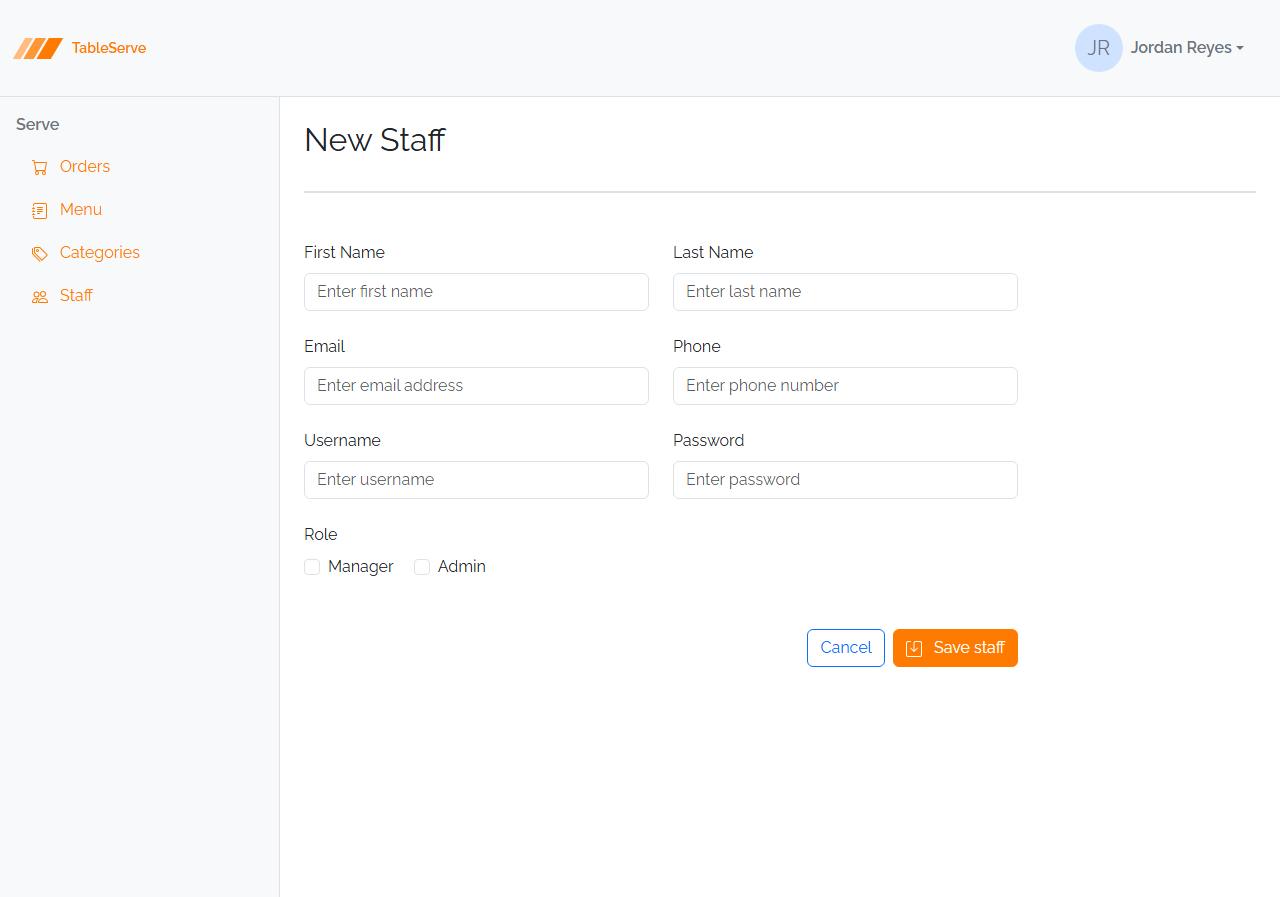
- Create
staff-create.htmlwith a form (d-flex flex-wrap w-75 gap-2) laid out in flex rows: - Row: First Name (
w-50) + Last Name (w-50) - Row: Email (
type="email",w-50) + Phone (w-50) - Row: Username (
w-50) + Password (type="password",w-50) - Row: Role — two inline checkboxes using
form-check form-check-inlinewithform-check-input/form-check-label, idsisManagerandisAdmin - Row: right-aligned Cancel (
<a>back to/staff.html) + Save button (#saveicon) - Create
staff-edit.htmlas the same form with pre-filledvalues,checkedon the appropriate role checkboxes, and the title "Edit Staff". - Confirm
staff,staffCreate, andstaffEditare invite.config.js.
No FK dropdown here. Staff has no foreign key, so its form is all plain inputs plus checkboxes — simpler than the Menu Item form. On PRS this is exactly the Users form (also no FK, also role flags).
Verify in the browser
Browser checks are covered in the guide — section 7. With npm run dev running:
- Open
/staff.html— cards wrap across the page, each showing name, username, phone, email, and only the role badges that apply. Role badges should differ per member. - Open a card's
⋮menu and confirm Edit/Delete appear. - Open
/staff-create.html— fields paired two-per-row, role checkboxes inline, buttons pushed right. Toggle the checkboxes; click labels to focus inputs. - Open
/staff-edit.html— pre-filled values and the correct checkboxeschecked. - Check the Console for 404s.
Same card + shared-form patterns, a different entity — this is precisely how you'll build the PRS Users page and form in the capstone.
Stretch challenges
Optional — for when you finish early. Not needed for the capstone. [Reinforce] builds on what you just did; [Reach] goes past the guide and needs some research.
- Avatar circle with initials — [Reach] — give each Staff card a circular avatar
showing the member's initials (e.g. "JR" for Jordan Reyes) to the left of the
details, in a
d-flex gap-4row. This pattern isn't spelled out in the guide on purpose — work out the circle from a fixed-size flex box that centers its text and usesrounded-circle. You'll need this exact pattern again on PRS's Users cards, where it's left for you to solve too. Reference: Bootstrap border-radius utilities (rounded-circle). - Combined-role styling — [Reinforce] — for members who are both Manager and
Admin, confirm both badges render side by side with a small gap. Adjust spacing
utilities (
me-1,mt-1) so they line up cleanly. - Sort the cards — [Reinforce] — reorder your hardcoded cards so Managers appear first, then Admins, then regular staff — practicing that the order in the markup is the order on screen (React will sort data instead).
- Empty-optional dashes — [Reinforce] — for a staff member with no phone or email,
render an
—(like the Orders table's empty Notes) instead of a blank line, so the card layout stays consistent.
Finished these and want more? See stretch-html-css-challenges.md for bigger challenges that span the whole HTML/CSS pass.