Lesson 4 Guide — Bootstrap Cards, Tables, Badges, Dropdowns, and the Shared Form
Goal: by the end of this lesson you have three real pages built on top of last lesson's shell: the Menu Items card grid, the Orders table (with status badges, a status filter, and a 3-dots action menu), and the shared Create/Edit form for a Menu Item (with a Category dropdown). These are the four component patterns — cards, tables, badges/dropdowns, forms — that every remaining page reuses.
The general pattern you're learning: Bootstrap gives you pre-styled components you assemble from utility-classed markup. A list of things you can picture individually becomes a card grid; a list you scan and compare row by row becomes a table; a short status word becomes a badge; a per-row action menu is a dropdown; and create and edit are the same form — only the title, the pre-filled values, and the button label differ.
How to use this guide. Sections marked ▶ Code along are hands-on — build them into your project as you read. The unmarked sections are concepts and reference (like "cards vs. tables" and the badge/dropdown component references) to read first, then apply in the code-along sections and the lab.
End goal — what you're building. Three finished pages come out of this lesson. The headline is the Menu Items card grid:
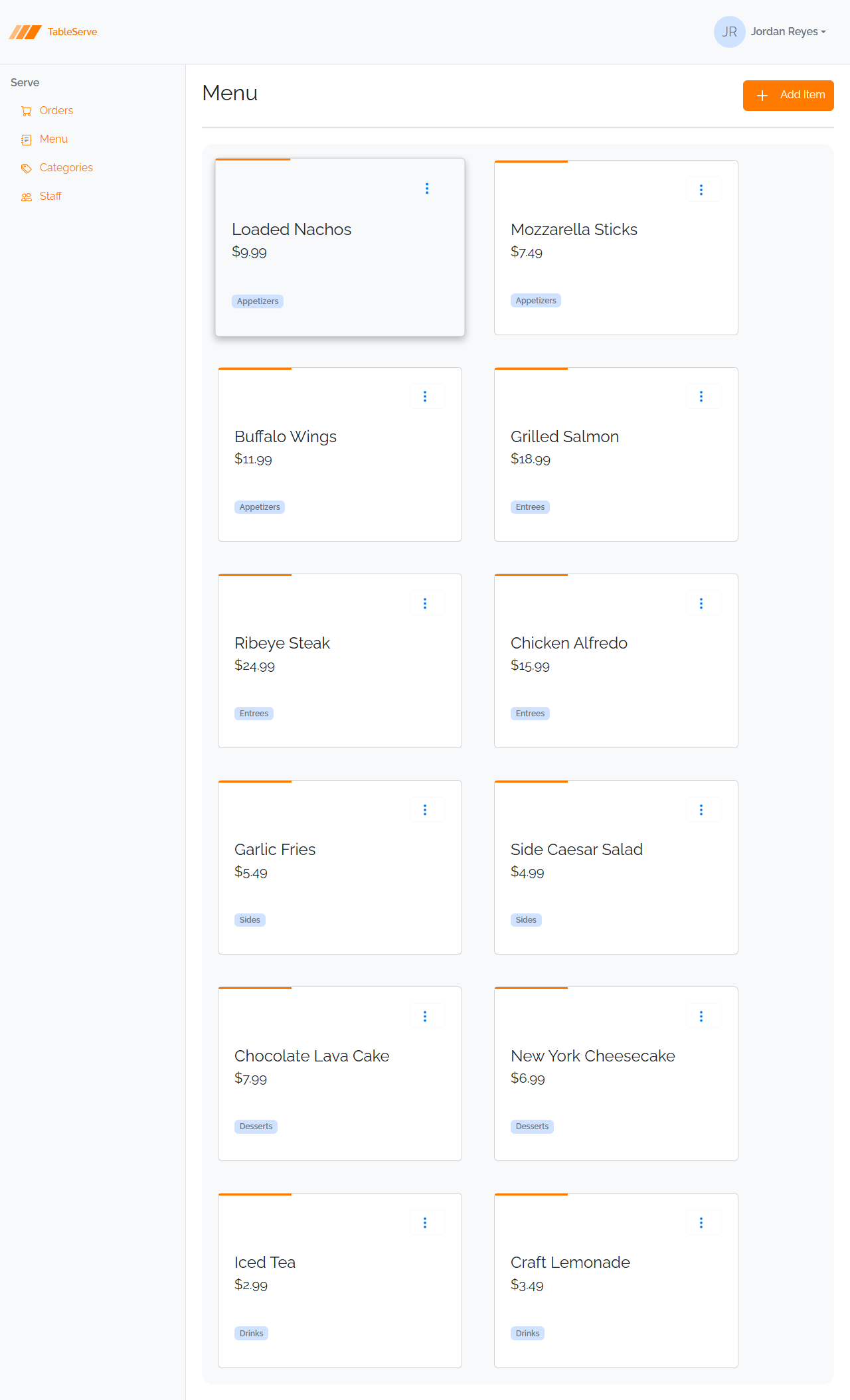
The Orders table and the shared Menu Item form follow in sections 5 and 6.
1. Cards vs. tables — picking the list layout
Every "list" page shows many records. You have two layouts, and the choice is about what the user does with the list:
- Card grid — when each record is a thing you consider on its own: a menu item, a staff member, a category. Cards wrap across the page and invite scanning visually. Menu Items, Staff, and Categories are card grids.
- Table — when the user compares records field-by-field and wants them aligned in columns: orders by status, total, time. Orders is a table.
Same data source either way — the layout follows the task, not the entity.
2. ▶ Code along — the card grid
A card grid is a flex container that wraps, holding fixed-width .card elements.
Here's the Menu Items grid frame:
<section class="list d-flex flex-row flex-wrap bg-light gap-5 p-4 rounded-4">
  <!-- one .card per menu item -->
</section>
d-flex flex-row flex-wrap— a row of cards that wraps to the next line when it runs out of width. This is why we don't needrow/col—flex-wrapgives us a responsive grid for free.gap-5— even spacing between cards, horizontally and vertically.bg-light rounded-4 p-4— a soft rounded tray behind the cards.
Try it in DevTools. Once you have cards below, inspect this
.listcontainer and uncheckflex-wrapin the Styles pane — the cards stop wrapping and spill off the row. Uncheckd-flexand they stack vertically. Re-check both. That's why the grid needsd-flex flex-row flex-wrap, notrow/col.
One card — built up class by class
Rather than paste the finished card and move on, build it in four passes and watch each layer of classes do its job. Reload the page after each pass — the goal is to see what every class changes, not to memorize the final block.
Pass 0 — plain HTML, no classes. Start with the structure only:
<div>
  <div>
    <div><!-- 3-dots action menu (section 4) --></div>
    <span>Loaded Nachos</span><br />
    <span>$9.99</span><br />
    <div>Appetizers</div>
  </div>
</div>
A card groups a name, a price, and a category — there's no more-specific semantic tag
for that, so it's plain <div>s (not an <address> — a card isn't contact info; that
distinction is from Lesson 1). In the browser this is just black text stacked on white —
no border, no card. This is the same starting point you hand-styled the long way in
Lesson 1. Everything below is CSS
Bootstrap already wrote, added one class at a time.
Pass 1 — make it a card. Add .card and pad the content:
Now it has a border, rounded corners, a white surface, and breathing room. .card is
the border / border-radius / shadow you wrote by hand in Lesson 1 — bundled under one
name (inspect it in DevTools to see those exact rules, the way you did with .btn-primary
in Lesson 3). py-4 px-4 pads the content off the edges; width: 23rem fixes the card's
size so the grid stays tidy (an inline style — one of the rare cases no utility fits).
Pass 2 — position the action menu. Push the ⋮ menu to the top-right corner:
d-flex justify-content-end is the same right-aligning flex row you built in Lesson 2 —
here it pins the menu to the card's corner.
Pass 3 — set the type and the badge. Give the name, price, and category their weight:
<span class="fs-4 lh-l fw-medium">Loaded Nachos</span><br />
<span class="fs-5 fw-light">$9.99</span><br />
<div class="badge text-secondary bg-primary-subtle mt-5">Appetizers</div>
fs-4 (font size) + fw-medium (weight) make the name prominent; fs-5 fw-light makes
the price smaller and lighter. .badge turns the category into a pill;
bg-primary-subtle text-secondary give it the soft look; mt-5 drops it below the price.
The finished card — the four passes together, plus a thin decorative accent bar across the top:
<div class="card" style="width: 23rem">
<div class="progress"><div class="progress-bar bg-primary-subtle" role="progressbar" style="width: 30%"></div></div>
<div class="py-4 px-4">
<div class="d-flex justify-content-end">
  <!-- 3-dots action menu (section 4) -->
</div>
<br />
<span class="fs-4 lh-l fw-medium">Loaded Nachos</span><br />
<span class="fs-5 fw-light">$9.99</span><br />
<div class="badge text-secondary bg-primary-subtle mt-5">Appetizers</div>
</div>
</div>
Things to notice:
- The card has a fixed
width: 23rem(inline style — one of the rare cases a utility class doesn't cover cleanly). Fixed width +flex-wrapis what makes the grid tidy. - The thin
.progressbar at the top is a decorative accent —styles.csspins it to the top edge of the card. Leave it as-is. - The inner
<div class="py-4 px-4">is a generic grouping wrapper for the card's content — a card isn't contact info, so it's a plain<div>, not an<address>(the distinction from Lesson 1). - Typography utilities set the visual hierarchy:
fs-4(font size) +fw-medium(weight) for the name,fs-5 fw-lightfor the price. - The category renders as a badge — a small pill.
bg-primary-subtle+text-secondarygive it the soft look.
You repeat that .card block once per menu item. In the static pass the data is
hardcoded — Loaded Nachos, Mozzarella Sticks, Buffalo Wings, and so on across the
five categories. (In React, one card becomes a .map() over fetched data.)
This is the card you hand-styled in Lesson 1 — now in classes. Back then you wrote
width: 23rem,padding,border,border-radius, and abox-shadowin your own CSS, and made the badge aninline-blockpill by hand. Here.cardand.badgeare Bootstrap classes that carry all of that for you. Same card, same box model underneath — you just stopped writing the CSS yourself. That's the whole point of a framework, and you can see exactly what it's doing because you did it the long way first.
Save and check
- The cards sit in a wrapping grid, not a single column — narrow the window and they
reflow. If they're stacked full-width, the
d-flex flex-wrapwrapper is missing. - Each card shows the name large, the price lighter beneath it, and the category as a soft pill badge.
- Compare it against your hand-styled Lesson 1 card — it should look near-identical, with none of the CSS written by you.
3. Badges
A badge is a small colored pill for a short label — a category name, a role, a status. Two flavors show up in this app:
- Soft (
bg-primary-subtle text-secondary) — a quiet label, used for the category on a menu card. - Contextual solid (
text-bg-*) — a colored fill that carries meaning. These are the status badges (next section):
<span class="badge text-bg-secondary">PLACED</span>
<span class="badge text-bg-warning">PREPARING</span>
<span class="badge text-bg-info">READY</span>
<span class="badge text-bg-success">SERVED</span>
<span class="badge text-bg-danger">CANCELLED</span>
text-bg-* sets both the background color and a readable text color in one class.
The color-to-status mapping matters — it's a convention users learn to read at a
glance:
| Status | Class | Color | Meaning |
|---|---|---|---|
| Placed | text-bg-secondary |
grey | just arrived, nothing happening yet |
| Preparing | text-bg-warning |
yellow | in progress |
| Ready | text-bg-info |
blue | waiting to be served |
| Served | text-bg-success |
green | done, happy path |
| Cancelled | text-bg-danger |
red | stopped / exception |
Try it in DevTools. Inspect a badge, double-click its
classattribute, and changetext-bg-warningtotext-bg-danger— it turns red instantly. Delete thetext-bg-*class entirely and it falls back to a plain grey pill. The class is the color.
4. The 3-dots action menu (dropdown)
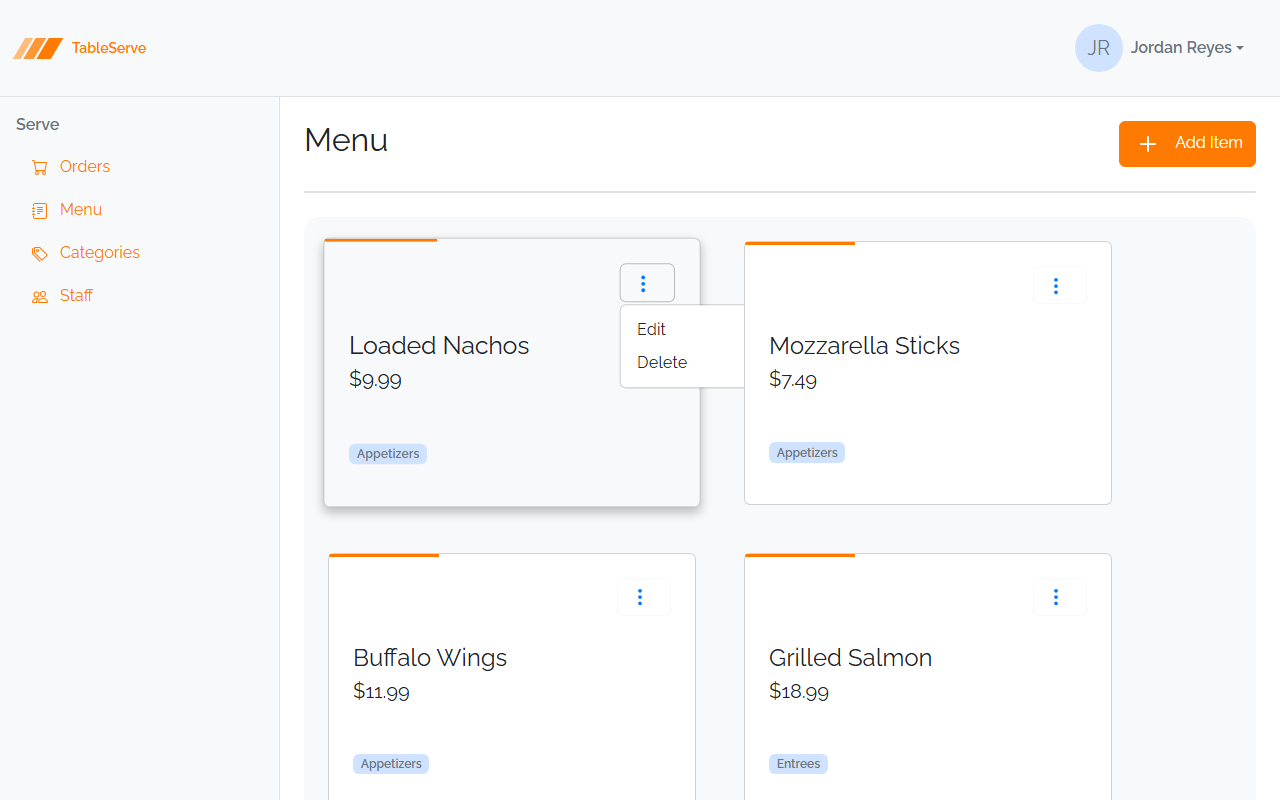
Every card and every table row gets a ⋮ menu with per-record actions (View / Edit /
Delete). It's a Bootstrap dropdown — a toggle button plus a menu that Bootstrap's
JS shows on click.
<div class="dropdown d-inline">
  <button class="btn btn-light" style="background: none" type="button"
          data-bs-toggle="dropdown" aria-expanded="false">
    <svg class="bi pe-none me-2" width="20" height="20" fill="#007AFF">
      <use href="/assets/bootstrap-icons.svg#three-dots-vertical" />
    </svg>
  </button>
  <ul class="dropdown-menu">
    <li><a class="dropdown-item" href="/menuitem-edit.html">Edit</a></li>
    <li><a class="dropdown-item" href="#" data-bs-toggle="modal" data-bs-target="#deleteMenuItemModal">Delete</a></li>
  </ul>
</div>
data-bs-toggle="dropdown"on the button is what Bootstrap's JS bundle hooks into — no JavaScript of your own. (This is why every page loads the bundle.)- The
#three-dots-verticalicon is the toggle. - The menu is a
<ul class="dropdown-menu">of<a class="dropdown-item">links. - Edit is a normal link to the edit page. Delete opens a confirmation modal —
data-bs-target="#deleteMenuItemModal"points at a modal you'll add in Lesson 5; for now the link is wired and the modal comes later.
On a card, wrap the dropdown in a right-aligned flex row so it sits in the corner:
Opened, the menu looks like this — the same 3-dots menu appears on every card and row:
5. ▶ Code along — the Orders table
Orders is the table layout. It sits in the same .list tray, with a status
filter above it.
The filter
<div class="d-flex flex-column mb-4" style="width: 250px">
  <label for="status" class="form-label">Status</label>
  <select id="status" class="form-select">
    <option value="">All</option>
    <option value="PLACED">Placed</option>
    <option value="PREPARING">Preparing</option>
    <option value="READY">Ready</option>
    <option value="SERVED">Served</option>
    <option value="CANCELLED">Cancelled</option>
  </select>
</div>
In the static pass the filter doesn't actually filter — it's the control, styled and
in place, ready for React to wire up. form-select is Bootstrap's styled dropdown
input; flex-column stacks the label above it.
The table
<section class="list d-flex flex-row flex-wrap bg-body-tertiary gap-5 p-4 rounded-4">
  <table class="table table-hover w-100 rounded-4">
    <thead>
      <tr>
        <th scope="col">Order #</th>
        <th scope="col">Table Number</th>
        <th scope="col">Notes</th>
        <th scope="col">Status</th>
        <th scope="col">Total</th>
        <th scope="col">Staff</th>
        <th scope="col">Ordered At</th>
        <th></th>
      </tr>
    </thead>
    <tbody>
      <tr>
        <th scope="row">201</th>
        <td>4</td>
        <td class="text-body-secondary small text-wrap">No onions please</td>
        <td><span class="badge text-bg-secondary">PLACED</span></td>
        <td>$23.98</td>
        <td>Casey Nguyen</td>
        <td>6:05 PM</td>
        <td>
          <div class="dropdown d-inline">
            <button class="btn btn-light" style="background: none" type="button" data-bs-toggle="dropdown" aria-expanded="false">
              <svg class="bi pe-none me-2" width="20" height="20" fill="#007AFF">
                <use href="/assets/bootstrap-icons.svg#three-dots-vertical" />
              </svg>
            </button>
            <ul class="dropdown-menu">
              <li><a class="dropdown-item" href="/order-detail.html">View</a></li>
              <li><a class="dropdown-item" href="/order-edit.html">Edit</a></li>
              <li><a class="dropdown-item" href="#" data-bs-toggle="modal" data-bs-target="#deleteOrderModal">Delete</a></li>
            </ul>
          </div>
        </td>
      </tr>
      <!-- more <tr> rows, one per order -->
    </tbody>
  </table>
</section>
table table-hover— base table styling plus a hover highlight per row.- The first cell of each row is a
<th scope="row">(the order number) — it's the row's identifier, so it's a header cell, not a<td>. The header cell in<thead>is<th scope="col">.scopetells assistive tech which way the header applies. - The Status cell holds a contextual badge from section 3 — matching the order's status to its color.
- Long free text (Notes) gets
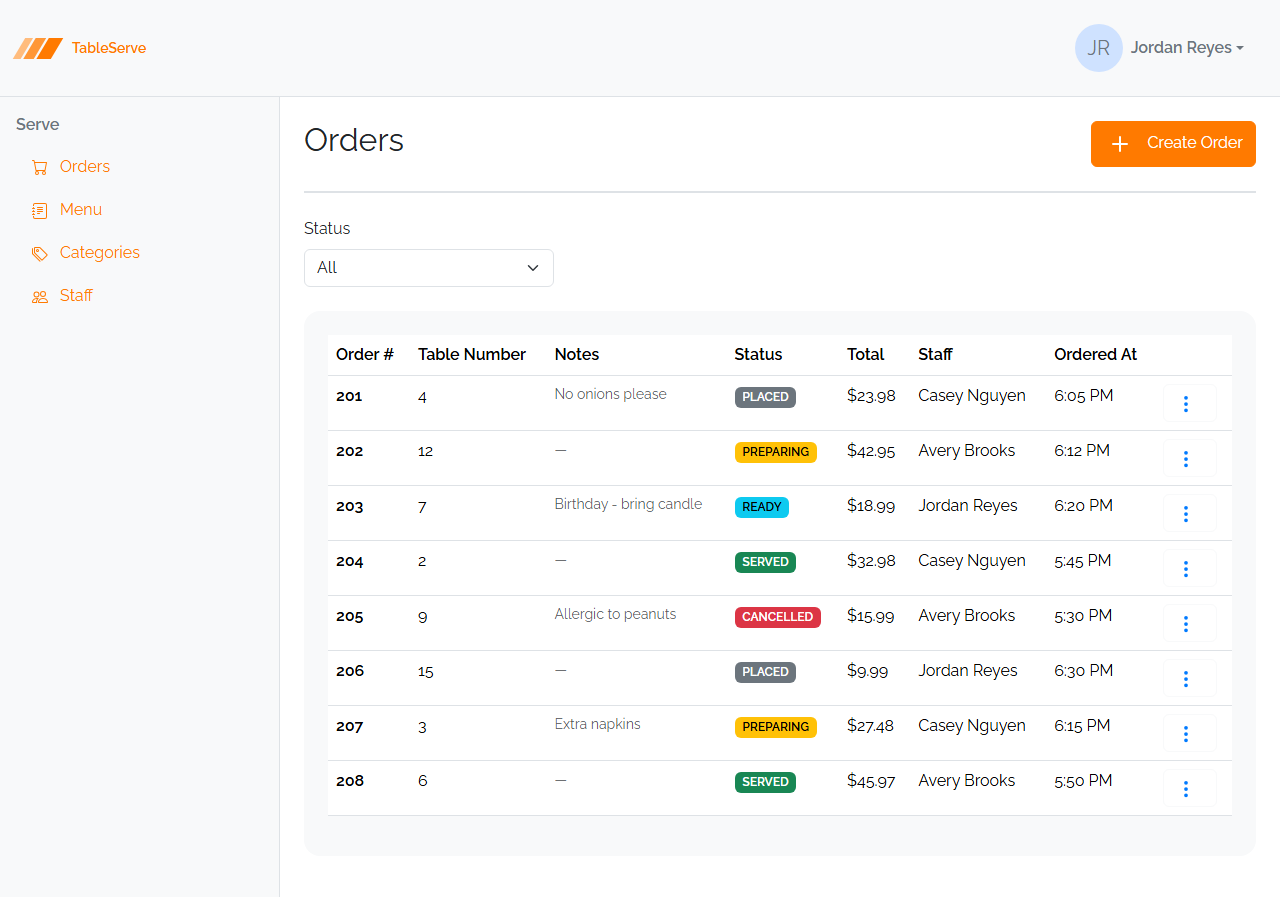
text-body-secondary small text-wrapso it stays muted and wraps instead of stretching the column. Empty optional values render as—. - The last cell is the 3-dots menu. Orders have three actions — View, Edit, Delete — because an order has a detail page; menu cards only had Edit/Delete.
Try it in DevTools. Inspect the
<table>and toggletable-hoveroff — the row-highlight-on-hover disappears. Thesetable*classes are the same borders and spacing you'd write by hand for a table, bundled under one name.
Hardcode a handful of orders across the full status range (a Placed, a Preparing, a Ready, a Served, a Cancelled) so every badge color appears.
Save and check
- The table renders with all five badge colors visible down the Status column — grey, yellow, blue, green, red.
- Hover a row and it highlights; that's
table-hoverearning its place. - The Notes column wraps and stays muted rather than stretching the table wide.
- Each row's ⋮ menu opens with View / Edit / Delete — three items here, not the two on a menu card.
6. ▶ Code along — the shared Create/Edit form
Here's a pattern worth internalizing because you'll reuse it constantly: "create" and "edit" are the same form. The fields, layout, and validation are identical. Only three things differ:
| Create | Edit | |
|---|---|---|
| Page title | "New Menu Item" | "Edit Menu Item" |
| Field values | empty / placeholders | pre-filled with the record |
| Button label | "Save menu item" | "Save menu item" (same) |
In the static pass you build both files (menuitem-create.html and
menuitem-edit.html) with the same markup — the edit page just has value="..."
attributes filled in. (In React they'll literally be one component.)
The Menu Item form
<form class="d-flex flex-wrap w-75 gap-2">
  <div class="row-1 d-flex flex-row w-100 gap-4">
    <div class="mb-3 w-75">
      <label for="name" class="form-label">Name</label>
      <input id="name" type="text" class="form-control" placeholder="Enter menu item name" />
    </div>
    <div class="mb-3 w-25">
      <label for="price" class="form-label">Price</label>
      <input id="price" type="number" step="0.01" class="form-control" placeholder="Enter price" />
    </div>
  </div>
  <div class="row-2 d-flex flex-row w-100 gap-4">
    <div class="mb-3 w-50">
      <label class="form-label" for="categoryId">Category</label>
      <select id="categoryId" class="form-select">
        <option value="">Select Category...</option>
        <option value="1">Appetizers</option>
        <option value="2">Entrees</option>
        <option value="3">Sides</option>
        <option value="4">Desserts</option>
        <option value="5">Drinks</option>
      </select>
    </div>
  </div>
  <div class="row-3 d-flex flex-row justify-content-end w-100 gap-4">
    <div class="d-flex justify-content-end mt-4">
      <a href="/menuitems.html" class="btn btn-outline-primary me-2">Cancel</a>
      <button type="submit" class="btn btn-primary">
        <svg class="bi pe-none me-2" width="16" height="16" fill="#FFFFFF">
          <use href="/assets/bootstrap-icons.svg#save" />
        </svg>
        Save menu item
      </button>
    </div>
  </div>
</form>
The Bootstrap form anatomy — memorize these three:
.form-labelon the<label>, with itsformatching the input'sid. Clicking the label focuses the field, and screen readers pair them..form-controlon text/number inputs;.form-selecton<select>. These supply the consistent bordered, padded input look.- Wrap each field in a
<div class="mb-3">for vertical spacing between fields.
Layout with flexbox, of course: the <form> is d-flex flex-wrap, and each "row"
is a d-flex flex-row w-100 gap-4 holding fields sized with width utilities
(w-75, w-25, w-50). Name+Price share a row; Category sits on its own; the
Cancel/Save buttons sit in a right-aligned row (justify-content-end).
The FK dropdown
Category is a foreign-key dropdown — the <select> whose options are other
records (the categories). Each <option value="1">Appetizers</option> carries the
category's id in value and its name as the label. That id is what the API
expects as CategoryId. In the static pass the options are hardcoded to match your
seed categories; in React they'll be fetched. This FK-dropdown pattern is exactly
what PRS's Product form needs for its Vendor dropdown.
The Cancel button is an <a> back to the list; Save is the type="submit"
button (it won't actually submit in the static pass — no backend wired — but the
markup is correct for React to take over).
Save and check
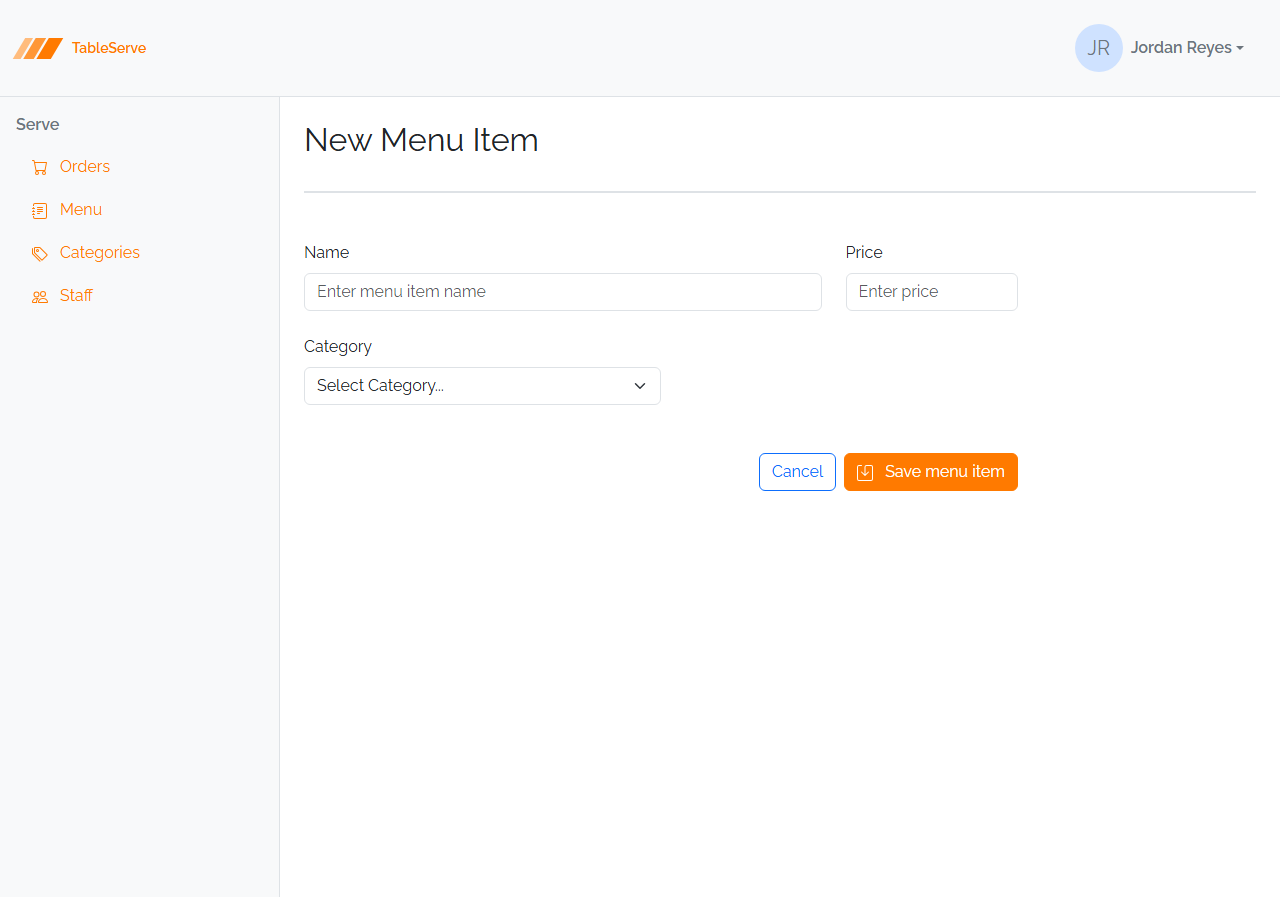
- Name and Price share a row and the Category dropdown sits below — all from flex
utilities, no
row/col. - Open the Category dropdown — your seeded category names are listed.
- Click a label (say "Name") and the cursor jumps into its input. If it doesn't, that
label's
fordoesn't match the input'sid— worth fixing now, since every form in the pass repeats this pairing. - Cancel returns to the list. Save does nothing yet — expected, there's no backend.
7. Verifying in the browser
With npm run dev running:
- Open
/menuitems.html— you should see a wrapping grid of menu cards, each with a name, price, category badge, and a⋮menu in the corner. Resize the window and watch the cards re-flow across rows (that'sflex-wrap). - Click a card's
⋮— the Edit/Delete menu should open (Bootstrap's JS at work). If nothing happens, the JS bundle<script>is missing from the bottom of the page. - Open
/orders.html— confirm the table renders with one badge per row in the right color (grey/yellow/blue/green/red), the muted wrapping Notes, and a⋮menu with View / Edit / Delete. Open the Status filter and confirm all five options are present. - Open
/menuitem-create.html— check the labels sit above their inputs, the Category<select>lists your five categories, and Name+Price share a row while the buttons are pushed right. Click a label and confirm it focuses its input. - Open
/menuitem-edit.html— same form, but the fields show pre-filledvalues and the Category has aselectedoption. - Check the Console (F12) for 404s (usually a bad icon or CSS path).
The General Pattern (what to take away)
- Card grid =
d-flex flex-row flex-wrap gap-*holding fixed-width.cards. Use it for records you consider individually. - Table =
table table-hover,<th scope="col">headers, first cell<th scope="row">, a status badge cell, a 3-dots dropdown cell. Use it for records you compare in columns. - Badge =
text-bg-*for meaningful status color,bg-*-subtlefor a quiet label. - Dropdown =
data-bs-toggle="dropdown"button +.dropdown-menulist. No custom JS — Bootstrap's bundle drives it. - Shared form = one set of fields; create and edit differ only in title,
pre-filled values, and (sometimes) button label.
.form-label+.form-control/.form-select, each field in amb-3, laid out with flex rows. - FK dropdown =
<select>whose<option value="{id}">{name}</option>come from another entity.
On PRS you'll reuse every one of these: Products/Vendors/Users as card grids, Requests as the table, the shared form for every create/edit, and the Product form's Vendor dropdown as the FK dropdown.
Build Steps
- In
menuitems.html, replace the empty content region with the.listcard-grid tray from section 2. - Add
.cardblocks (section 2) — one per menu item, hardcoded across all five categories — each with name, price, a category badge, and a 3-dots dropdown (Edit + Delete). - In
orders.html, add the status filter (section 5) above the list. - Add the
.listtray with atable table-hover(section 5): a<thead>of<th scope="col">and<tbody>rows across the full status range, each with a status badge and a View/Edit/Delete 3-dots dropdown. - Create
menuitem-create.htmlwith the shared form (section 6): Name, Price, and a Category FK dropdown, plus Cancel/Save buttons. - Create
menuitem-edit.htmlas the same form with pre-filledvalues, aselectedcategory, and the title "Edit Menu Item". - Confirm
menuitems,orders,menuitemCreate, andmenuitemEditare all in thevite.config.jsinputobject. - Verify all four pages in the browser using section 7 — card re-flow, working dropdowns, correct badge colors, and label/input pairing on the form.
Provided for you: the Categories list (
categories.html) and its Create/Edit form are given to you as finished reference pages — a card grid and a simple no-FK form. Read them; they're the same patterns on the simplest entity.