Lesson 3 Guide — The Vite Scaffold, Partials, and the Bootstrap Page Shell
Goal: by the end of this lesson you have the TableServe static-design project
running with npm run dev, you understand the page shell every screen shares
(header → nav → content), and you have built the first page skeleton — the
Orders page. This is where the project tooling (Vite + Handlebars partials) and
Bootstrap enter. No Bootstrap components yet (cards, tables, forms come next
lesson) — this lesson is about the layout scaffold every page sits inside.
The general pattern you're learning: every page in this app is the same three
regions — a shared header, a shared nav sidebar, and a page-specific
section.content — laid out with flexbox, never the Bootstrap row/col grid.
And Bootstrap's utility classes are just shorthand for the raw CSS you already
wrote by hand in Lessons 1–2 — d-flex is display: flex, p-4 is padding, and
so on. Once you can produce the shell, every other page is different content dropped
into the same frame.
How to use this guide. Sections marked ▶ Code along are hands-on — build them into your
TableServe.Designproject as you read. The unmarked sections are concepts and reference to read first, then apply in the code-along sections and the lab. (Emmet abbreviations from Lessons 1–2 still speed up typing the markup.)
End goal — where you're headed. This is the finished Orders page:
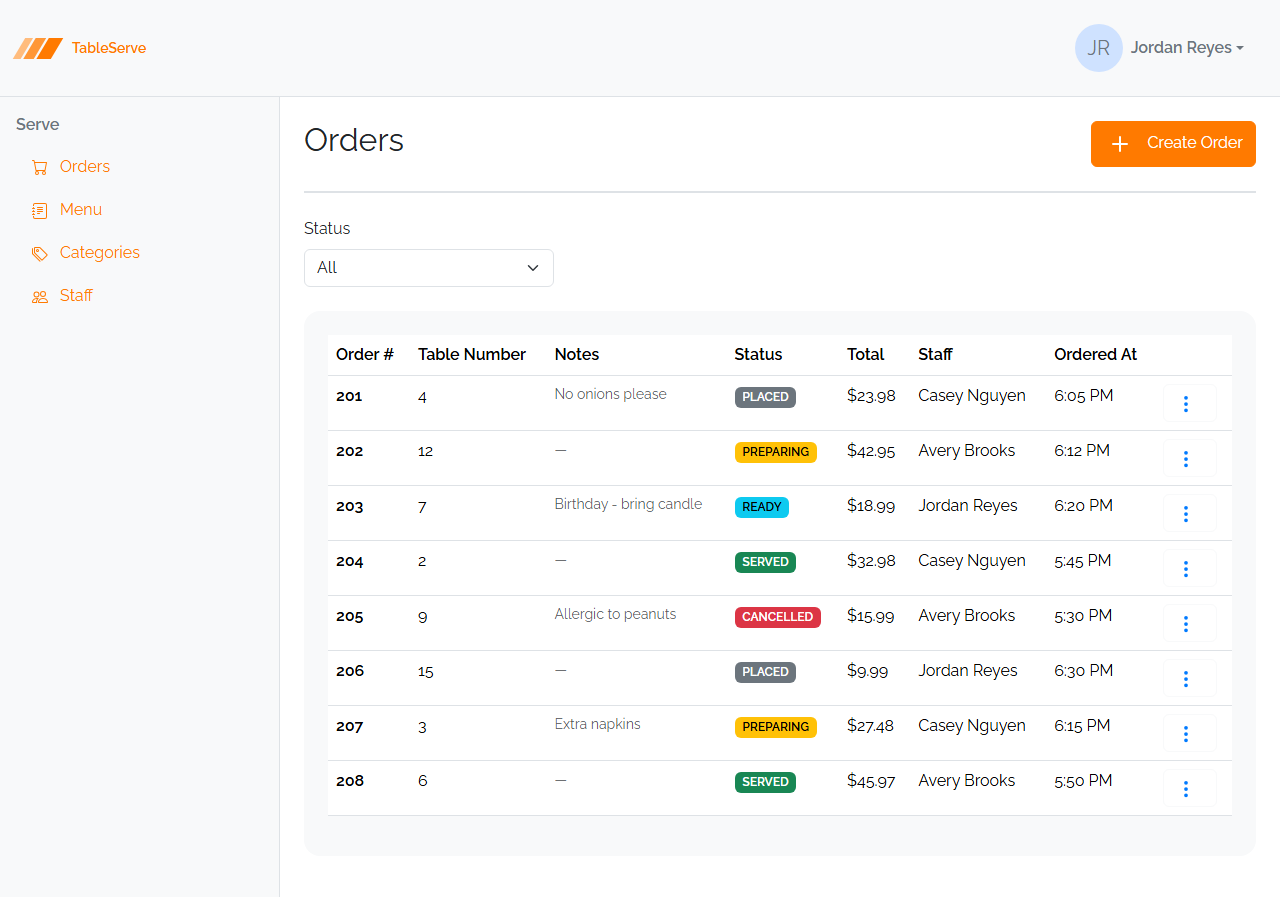
In this lesson you build only its frame — the header, the nav, and the heading row — and leave the area below empty. Lesson 4 fills in the filter and table; Lesson 5 adds the modals. Every page in the app is this same shell wrapped around different content.
1. Where this lesson fits
In Lessons 1 and 2 you wrote HTML and CSS by hand in plain files — the box
model, semantic tags, and flexbox, styled with your own CSS in a .css file you
linked yourself. You previewed those files with Live Server. No framework, no build
tooling, on purpose: you needed to see the raw mechanics before anything hid them.
Now you add the two things a real project uses to avoid repeating that work:
- Bootstrap — a CSS framework that ships thousands of pre-written classes so you
don't hand-write
display: flex; justify-content: space-between;every time. - Vite + a partials plugin — a dev server plus a way to write the shared header and nav once and include them on every page.
Nothing here replaces what you learned — Bootstrap's classes are that CSS, named and packaged. This lesson shows you the packaging.
Lessons 1–2            →  Lesson 3 (you are here)   →  Lessons 4–5
raw HTML/CSS/flexbox      tooling + Bootstrap shell     Bootstrap components
by hand, plain files      the frame every page shares   cards, tables, forms, modals
Why the whole pass comes before React
You already built the TableServe Web API. In this pass you build the static front end — markup styled with Bootstrap, with no JavaScript logic of your own (only Bootstrap's bundle for dropdowns and modals). No data fetching, no forms that submit, no routing. You get the markup and layout exactly right while it's still simple; in the React pass you convert this same markup into components. Think of these pages as the visual target React has to reproduce.
The pages you'll build
Every screen in this app is one of a handful of page types — a list (as a card grid or a table), a detail view, a shared create/edit form, and a delete confirmation — wired together by navigation. Here's the whole map:
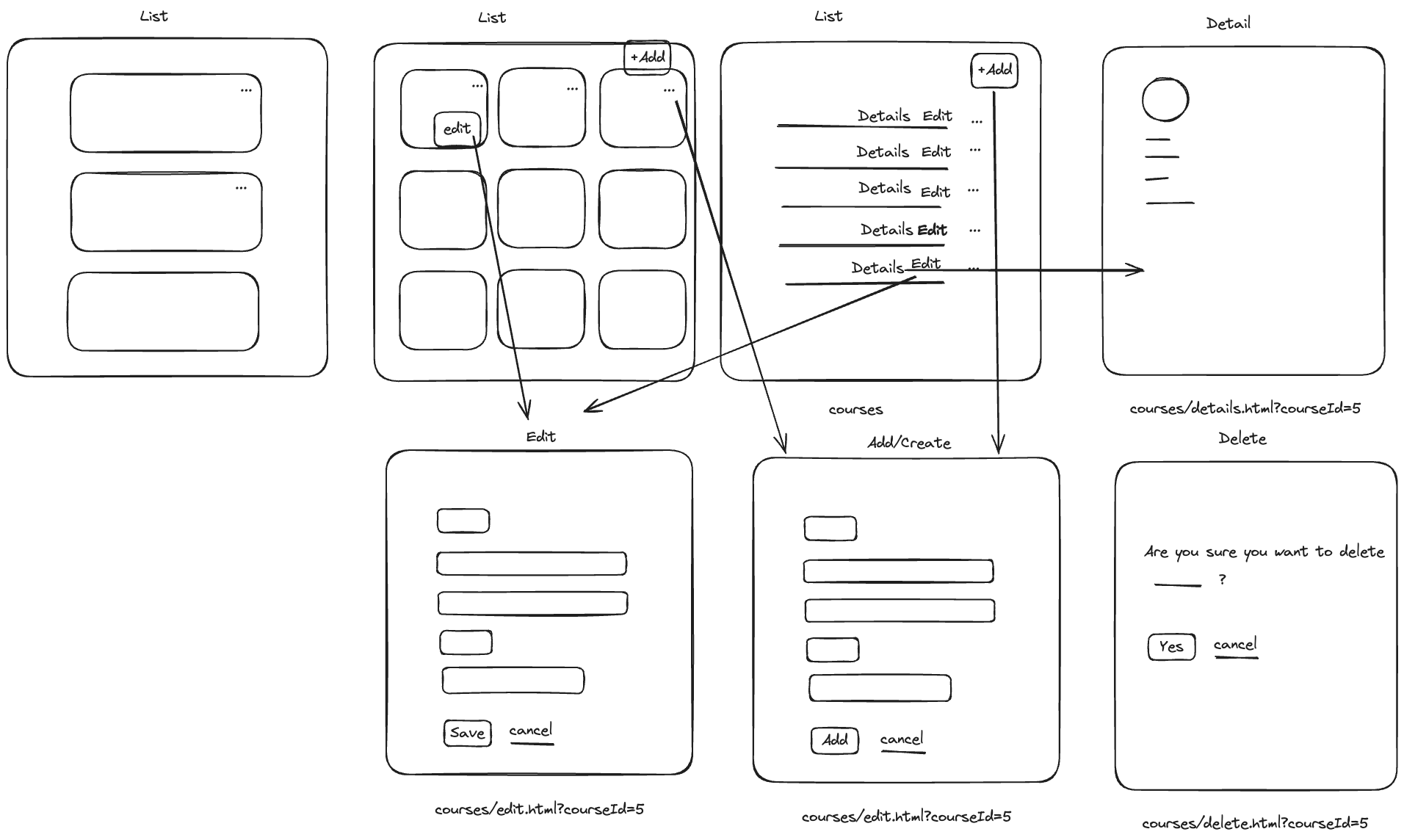
You'll skeleton these page types in this lesson's lab, then fill them with real Bootstrap components in Lessons 4–5 — the same handful of pages you'll rebuild for PRS in the capstone.
2. The project scaffold (provided)
You're given a starter project — you don't build the tooling from scratch. Download
and unzip tableserve-design-starter.zip;
the unzipped folder is your project, and inside you'll find:
TableServe.Design/
  package.json          ← dependencies + dev/build scripts
  vite.config.js        ← Vite + handlebars partials config (every page already wired)
  index.html            ← page directory — links to every page in the project
  orders.html           ← ships BLANK (just the <head>) — you build its shell in
                            this lesson's guide
  staff.html            ← ships BLANK — you build its shell in this lesson's lab
  menuitems.html        ← skeleton: the shared shell (header + nav + empty content)
  categories.html         is already in place, ready to fill in
  order-create.html       (…and the rest — see index.html for the full list)
  …
  partials/
    header.html         ← finished — the top bar + brand + user menu
    nav.html            ← finished — the left sidebar links
  css/
    styles.css          ← finished — fonts, brand color, layout tweaks
  assets/
    bootstrap-icons.svg  ← the icon sprite used with <use href="...#icon">
  node_modules/         ← after you run npm install
The header.html, nav.html, styles.css, and assets/ are finished for you.
Most entity pages also ship as a skeleton — the shared shell wrapped around an
empty section.content, ready for you to fill in. Two are the exception: orders.html
and staff.html ship blank (just the <head>) on purpose, because in this lesson
you build their shell yourself — orders.html in the guide below, staff.html in the
lab. Every other page you open and fill, not create.
package.json
{
  "name": "tableserve-design",
  "private": true,
  "type": "module",
  "scripts": {
    "dev": "vite",
    "build": "vite build"
  },
  "dependencies": {
    "bootstrap": "^5.3.3"
  },
  "devDependencies": {
    "vite": "^5.2.0",
    "vite-plugin-handlebars": "^2.0.0"
  }
}
Three packages, that's it:
- bootstrap — the CSS framework (installed via npm, not a CDN
<link>). - vite — the dev server. It serves your pages with instant reload as you save.
- vite-plugin-handlebars — lets you write
{{> header}}in a page and have the contents ofpartials/header.htmldropped in. That's how every page shares one header and one nav without copy-pasting them.
Run npm install once to create node_modules/, then npm run dev. Vite prints a
local URL (e.g. http://localhost:5173). Leave it running — it reloads on save.
What changed from Lessons 1–2: there you previewed a
.htmlfile with Live Server. Now you run Vite's dev server (npm run dev) and open the URL it prints — because the{{> header}}partials only expand when Vite processes the page.
3. Partials — write the header and nav once
Without partials, changing a nav link would mean editing every page. Instead, each page includes the shared pieces with a Handlebars partial tag:
vite.config.js wires this up by pointing the plugin at the partials/ folder:
import { defineConfig } from "vite";
import handlebars from "vite-plugin-handlebars";
import { resolve } from "path";

export default defineConfig({
  plugins: [
    handlebars({
      partialDirectory: resolve(__dirname, "partials"),
    }),
  ],
  build: {
    rollupOptions: {
      input: {
        // one entry per page so `npm run build` produces every page
        orders: resolve(__dirname, "orders.html"),
        // ...one line per .html page you add
      },
    },
  },
});
Every page the starter ships already has its line in that input object — you don't
add entries for the provided pages. You only add one line here if you create a
brand-new page of your own (say, in a stretch challenge) so the production build
knows about it. During npm run dev you can open any .html file directly.
You don't need to edit header.html or nav.html — they're done. It's still worth
reading them so you recognize the pieces (the brand SVG logo, the user dropdown, the
nav-pills sidebar links).
4. Semantic HTML in the shell (a quick recap)
You met semantic tags in Lesson 1 — tags that describe what a region is, not just how it looks. The shell is built entirely from them, so a quick recap of the ones you'll see:
| Tag | Meaning |
|---|---|
<header> |
page banner (the top bar) |
<nav> |
primary navigation (the sidebar) |
<main> |
the one main content area of the page |
<section> |
a thematic grouping (the page's content region) |
Same rules as Lesson 1: exactly one <main> per page, reach for a <div> only
when no semantic tag fits (a pure layout wrapper), and pick heading levels by rank
(<h2> page title, <h5> card title) not by size.
5. Bootstrap utility classes = the CSS you already know, abbreviated
Here's the mental model that keeps Bootstrap from feeling like magic: a utility
class is one line of the CSS you hand-wrote in Lessons 1–2, given a short name.
When you write class="d-flex", Bootstrap's stylesheet has literally already
written .d-flex { display: flex; } for you. You're not learning new concepts —
you already know the box model and flexbox — you're learning the names.
Box-model utilities — the padding/margin you set by hand, on a 0–5 scale:
| Class | The CSS you'd have written |
|---|---|
p-4 |
padding: 1.5rem; (all sides) |
py-4 |
padding-top and padding-bottom |
px-4 |
padding-left and padding-right |
mb-4 |
margin-bottom: 1.5rem; |
me-2 |
margin-right: 0.5rem; (margin-end, left-to-right) |
border-bottom border-2 |
border-bottom: 2px solid; |
Flexbox utilities — the exact flexbox properties from Lesson 2:
| Class | The CSS you'd have written |
|---|---|
d-flex |
display: flex; |
flex-row |
flex-direction: row; |
flex-column |
flex-direction: column; |
flex-wrap |
flex-wrap: wrap; |
justify-content-between |
justify-content: space-between; |
justify-content-end |
justify-content: flex-end; |
align-items-center |
align-items: center; |
gap-4 |
gap: 1.5rem; |
flex-grow-1 |
flex-grow: 1; |
Because the classes are just that CSS, you'll rarely open a .css file this pass —
styles.css only adds the handful of brand rules Bootstrap can't express. When a
utility doesn't cover something cleanly, you drop back to an inline style="..." or
a styles.css rule — exactly the CSS you already write.
The one layout rule for the whole course
We lay out with flexbox utilities, never Bootstrap's row/col grid. If you
catch yourself typing class="row" or class="col-6", stop — that's the wrong tool
here. Everything you need, you built by hand in Lesson 2; the utilities above are the
same thing named.
Two patterns you'll use on nearly every page — the same two you hand-built in Lesson 2, now in utilities:
A header row with a title on the left and a button on the right:
<div class="d-flex justify-content-between align-items-center">
  <h2>Orders</h2>
  <a href="/order-create.html" class="btn btn-primary">Create Order</a>
</div>
justify-content-between puts maximum space between the two children, pinning one to
each end.
A sidebar next to a content area that fills the rest:
<main class="d-flex">
  {{> nav}}                          <!-- fixed 280px sidebar -->
  <section class="content flex-grow-1">...</section>  <!-- eats the rest -->
</main>
d-flex makes main a row; flex-grow-1 on the content lets it expand to fill
whatever the fixed-width nav doesn't use. That's the whole app frame — the one you
built by hand in Lesson 2, now assembled from the scaffold's partials.
Proof: it's just CSS someone wrote for you
The tables above claim d-flex is only display: flex. Don't take it on faith —
Bootstrap ships its full, unminified stylesheet right next to the one you link, at
node_modules/bootstrap/dist/css/bootstrap.css (the .css, not the .min.css). It's
plain CSS you can read.
Prove it two ways on your Orders skeleton:
- Read the source. Open
node_modules/bootstrap/dist/css/bootstrap.cssand search (Ctrl-F) for.d-flex {— you'll find exactlydisplay: flex;. Search.btn-primary {and you'll find an ordinary rule (color,background-color,border,padding) — no magic. Every class you use is in that file. - Inspect and toggle in DevTools. Open
/orders.html, right-click the Create Order button → Inspect. The Styles pane shows the same.btnand.btn-primaryrules Bootstrap wrote. Now uncheck itsbackground-color— the button goes transparent live. Re-check it. Unchecking properties one at a time is the fastest way to learn what a class actually does.
This is the whole point of the pass: Bootstrap didn't invent anything you can't read. A
utility is one line of CSS; a component class (like the .card and .badge you
meet next lesson) is just several of those lines bundled under one name. Same CSS, same
box model from Lesson 1 — you've just stopped typing it yourself. Keep the DevTools Styles
pane open as you build; when a class's effect isn't obvious, uncheck it and watch.
6. ▶ Code along — the page shell every screen shares
orders.html ships blank — just the <head> and an empty <body>. You'll build
that body now: the shell every TableServe page shares. Open orders.html in VS Code and type this into the empty
body. You produce it by hand once here — the pre-skeletoned pages already have this exact
structure, so you'll recognize it everywhere:
<!doctype html>
<html lang="en">
  <head>
    <meta charset="UTF-8" />
    <meta name="viewport" content="width=device-width, initial-scale=1.0" />
    <title>TableServe — Orders</title>
    <link rel="stylesheet" href="/node_modules/bootstrap/dist/css/bootstrap.min.css" />
    <link rel="stylesheet" href="/css/styles.css" />
  </head>
  <body>
    {{> header}}
    <main class="d-flex">
      {{> nav}}
      <section class="content p-4 flex-grow-1">
        <!-- page-specific content goes here -->
      </section>
    </main>
    <script src="/node_modules/bootstrap/dist/js/bootstrap.bundle.min.js"></script>
  </body>
</html>
Notice:
- Bootstrap's CSS is linked from
node_modules(installed package), thenstyles.cssafter it so our overrides win. (Same idea as Lesson 1, where your own.csscame after any reset — the later rule wins.) {{> header}}sits above<main>;{{> nav}}is the first child inside<main class="d-flex">, so it becomes the left column.section.contentgetsp-4(breathing room) andflex-grow-1(fill the rest).- Bootstrap's JS bundle is the last line in
<body>. It powers the dropdowns and modals you'll add later. Every page needs it.
Save and check
- Load
/orders.html— the header bar is across the top and the nav runs down the left, even though you didn't type either one. That's the partials being pulled in. - The area right of the nav is empty — correct,
section.contentholds only a comment so far. - The font is Bootstrap's, not the browser's default Times — proof the
node_modulesstylesheet link resolved.
7. ▶ Code along — the page-heading pattern
Inside section.content, every list/detail page opens with the same heading row: a
title on the left, a primary action button on the right, and a bottom border under
both.
<div class="d-flex justify-content-between pb-4 mb-4 border-bottom border-2">
  <h2>Orders</h2>
  <a href="/order-create.html" class="btn btn-primary">
    <svg class="bi pe-none me-2" width="32" height="32" fill="#FFFFFF">
      <use href="/assets/bootstrap-icons.svg#plus" />
    </svg>
    Create Order
  </a>
</div>
justify-content-betweensplits title and button to opposite ends.pb-4 mb-4— padding then margin below, so the border sits off the text and the content below sits off the border. (Recognize the box model from Lesson 1 — padding inside, margin outside.)border-bottom border-2— a 2px rule under the row.- The icon is an SVG
<use>referencing a symbol inassets/bootstrap-icons.svg(here#plus).pe-nonemakes it ignore pointer events;me-2spaces it from the label. This same<svg><use href="...#name" /></svg>pattern is how every icon in the app is drawn.
For this lesson, the content below the heading stays empty — a placeholder comment. Filling it with a card grid or table is next lesson's job. This is a skeleton: shell + heading, nothing more.
Save and check
- Orders sits hard left and the blue Create Order button hard right, on one row —
that's
justify-content-between. - A 2px rule runs under the row, with space above and below it (
pb-4 mb-4). - The button shows a + icon before its label. A missing icon means the
<use href>path toassets/bootstrap-icons.svgis wrong — check it before moving on, because every icon in the app uses this same pattern.
8. Verifying in the browser
Same as Lessons 1–2 — the browser is your verification tool. The one difference from
Lessons 1–2: you open the URL that npm run dev prints rather than previewing the file
with Live Server (Vite has to process the page for the {{> header}} partials to expand).
- With
npm run devrunning, open the printed URL and navigate to/orders.html(or click through from the header brand). - You should see: the header bar across the top, the nav sidebar on the left, and your "Orders" heading with a "Create Order" button pushed to the right, a rule underneath, and empty space below.
- Resize the window. The content area should flex to fill the space beside the
fixed-width sidebar — that's
flex-grow-1doing its job (the same behavior you built by hand in Lesson 2). - Open the browser DevTools (F12) → Elements, hover over your
<main>, and confirm it's laid out as a flex row (nav + content side by side). Hover the heading<div>and watch the box-model overlay highlight padding/margin/border — the same overlay you used in Lesson 1. - Check the Console tab for errors. A 404 on
bootstrap.min.cssorstyles.cssmeans a wrong path in your<link>tags — fix the href and save.
If the header or nav doesn't appear, the {{> header}} / {{> nav}} partial isn't
resolving — confirm the file is named exactly header.html / nav.html in
partials/, and that you started the page from npm run dev (partials only expand
through Vite, not by opening the raw .html file directly).
The General Pattern (what to take away)
Every page you build this pass is the same shell:
- The standard
<head>(Bootstrap CSS, thenstyles.css). {{> header}}for the top bar.<main class="d-flex">with{{> nav}}as the first child.<section class="content p-4 flex-grow-1">for the page's own content.- The Bootstrap JS bundle as the last line of
<body>. - Inside content, the
justify-content-betweenheading row (title + action + rule).
You lay it all out with flexbox utilities — d-flex, justify-content-*,
align-items-*, gap-*, flex-grow-1 — and never row/col. Every one of
those utilities is a line of the CSS you wrote by hand in Lessons 1–2. When you build
the PRS static pages in the capstone, this identical shell is your starting point;
only the page title, the action button, and the content region change.
Build Steps
- Open the provided
TableServe.Designscaffold and runnpm install. - Run
npm run devand confirm the printed local URL loads —index.htmlis a page directory, a list of links to every page in the project, so you can jump to any page as you build. - Read
partials/header.htmlandpartials/nav.htmlso you recognize the shared pieces. Don't change them. - Open
orders.html— click its link on theindex.htmlpage directory, or open the file in VS Code. It ships blank (just the<head>); build the page shell from section 6 into its empty<body>—{{> header}},<main class="d-flex">with{{> nav}}and<section class="content p-4 flex-grow-1">, and the JS bundle. - Add the page-heading row from section 7 inside the existing
section.content— an<h2>"Orders" title and a "Create Order" primary button with the#plusicon. - Leave the area below the heading empty (a placeholder comment) — components come next lesson.
- Confirm
ordersis already listed in theinputobject ofvite.config.js— every starter page is pre-wired, so there's nothing to add here (you'd only add a line for a brand-new page of your own). - Open
/orders.htmlin the browser and verify the shell renders (header, nav, heading, rule) using the checks in section 8 — resize to confirmflex-grow-1, and check the Console for 404s.